SEC0411 – Firepower 7.0 AnyConnect VPN Secure Mobility Client Profile
SEC0411 – Firepower 7.0 AnyConnect VPN Secure Mobility Client Profile
Client Profile
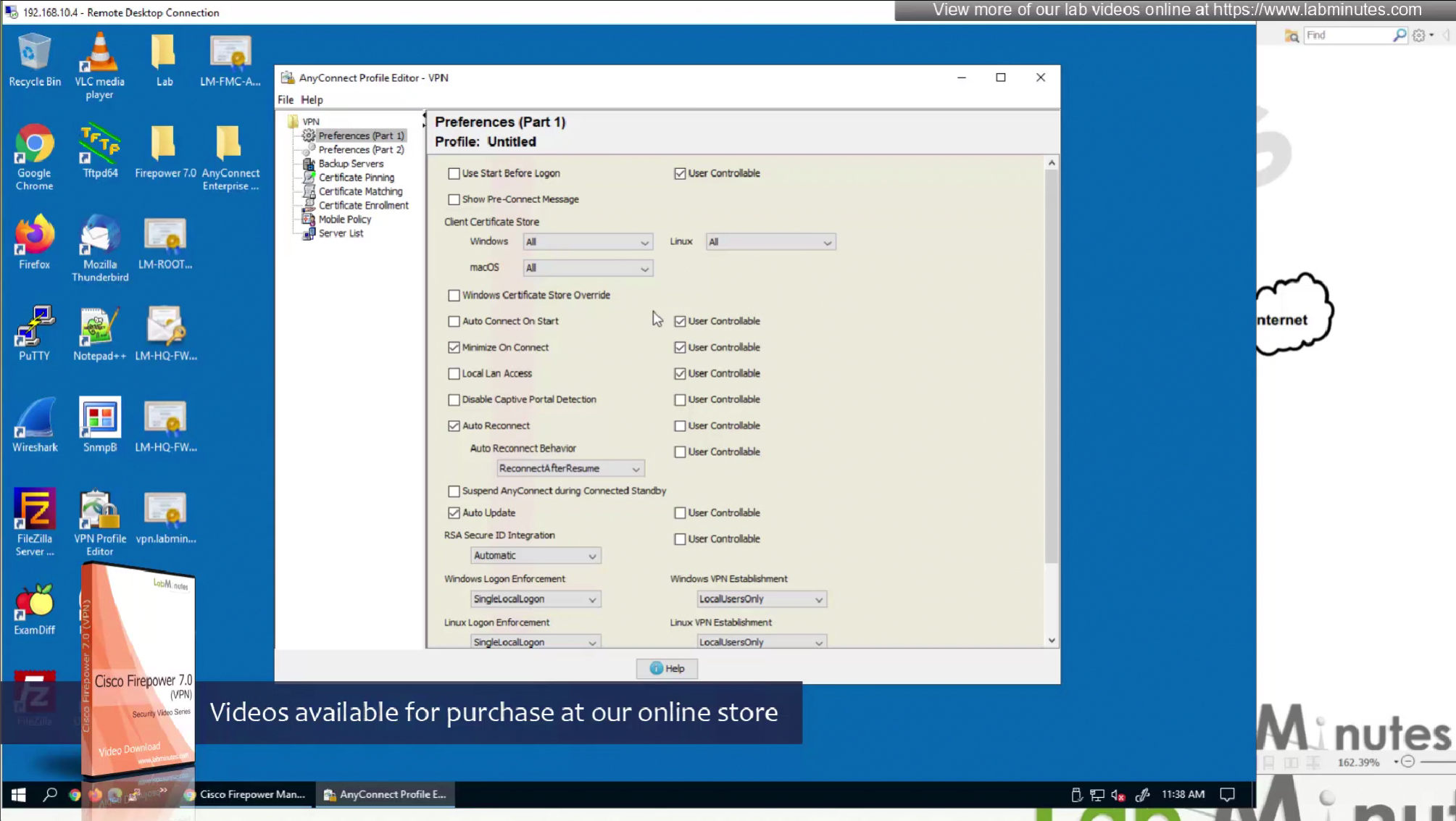
AnyConnect Profile Editor, Preferences (Part 1)
- Use Start Before Logon—(Windows Only) Forces the user to connect to the enterprise infrastructure over a VPN connection before logging on to Windows by starting AnyConnect before the Windows login dialog box appears. After authenticating, the login dialog box appears and the user logs in as usual.
- Show Pre-connect Message—This feature allows an administrator to configure a one-time notification message that is shown to a user before their very first VPN connection attempt, this is used to instruct user for first time in order to reduce help desk calls, It appears only before the user’s very first connection attempt with the AnyConnect client. After the user has seen it once, it will not appear again on subsequent connections.
- Certificate Store—Controls which certificate store(s) AnyConnect uses for storing and reading certificates. The default setting (All) is appropriate for most cases. Do not change this setting unless you have a specific reason or scenario requirement to do so.
- Certificate Store Override—Allows an administrator to direct AnyConnect to utilize certificates in the Windows machine (Local System) certificate store for client certificate authentication. Certificate Store Override only applies to SSL, where the connection is initiated, by default, by the UI process. When using IPSec/IKEv2, this feature in the AnyConnect Profile is not applicable. Note You must have a predeployed profile with this option enabled in order to connect with Windows using a machine certificate. If this profile does not exist on a Windows device prior to connection, the certificate is not accessible in the machine store, and the connection fails.
- Auto Connect on Start—AnyConnect, when started, automatically establishes a VPN connection with the secure gateway specified by the AnyConnect profile, or to the last gateway to which the client connected.
- Minimize On Connect—After establishing a VPN connection, the AnyConnect GUI minimizes.
- Local LAN Access—Allows the user complete access to the local LAN connected to the remote computer during the VPN session to the ASA.
- Auto Reconnect—AnyConnect attempts to reestablish a VPN connection if you lose connectivity. If you disable Auto Reconnect, it does not attempt to reconnect, regardless of the cause of the disconnection. Use Auto Reconnect in scenarios where the user has control over the behavior of the client. This feature is not supported with AlwaysOn because it simply attempts to reconnect on fresh disconnect or interruption
- Auto Reconnect Behavior
- DisconnectOnSuspend—AnyConnect releases the resources assigned to the VPN session upon a system suspend and does not attempt to reconnect after the system resumes.
- ReconnectAfterResume (Default)—AnyConnect attempts to reestablish a VPN connection if you lose connectivity.
- Auto Reconnect Behavior
- Auto Update—When checked, enables the automatic update of the client. If you check User Controllable, the user can override this setting in the client.
- RSA Secure ID Integration (Windows only)—Controls how the user interacts with RSA. By default, AnyConnect determines the correct method of RSA interaction (automatic setting: both software or hardware tokens accepted).
- Windows Logon Enforcement—Windows Logon Enforcement controls how VPN sessions behave when users log on or off a Windows system, especially in RDP (Remote Desktop Protocol) scenarios
It enforces security by ensuring that VPN sessions don’t persist when the authenticated Windows user is gone.
It avoids potential misuse (e.g., someone else accessing a still-open VPN tunnel).
If a VPN connection is established inside an RDP session, the VPN will work during that session — but:
Split tunneling must be enabled in the group policy and source subnet from which user is connecting to RDP server must be excluded from tunnel; otherwise, traffic won’t route properly and connecting an anyconnect vpn can suddenly drop RDP session with black screen
The VPN session is tied to the specific user who started it.
If the originating user logs off (whether local or remote via RDP), the VPN session is immediately disconnected. This prevents a situation where a VPN remains active without an authenticated Windows user tied to it. - Windows VPN Establishment
- Local Users Only (Default)—Prevents a remotely logged-on user from establishing a VPN connection. This is the same functionality as in prior versions of AnyConnect.
- Allow Remote Users—Allows remote users to establish a VPN connection. However, if the configured VPN connection routing causes the remote user to become disconnected, the VPN connection terminates to allow the remote user to regain access to the client PC.
- When you connect to a computer via RDP and then start an AnyConnect VPN session inside that remote session…
- If you immediately log off the RDP session, the VPN will also drop (because Windows Logon Enforcement ties the VPN to the logged-in user).
- To avoid this, Cisco built in a 90-second grace period: if you wait at least 90 seconds after starting the VPN, then you can safely log off the RDP session without killing the VPN tunnel.
- Clear SmartCard PIN
- IP Protocol Supported—For clients with both an IPv4 and IPv6 address attempting to connect to the ASA using AnyConnect, AnyConnect needs to decide which IP protocol to use to initiate the connection. By default AnyConnect initially attempts to connect using IPv4. If that is not successful, AnyConnect attempts to initiate the connection using IPv6.This field configures the initial IP protocol and order of fallback.
- IPv4—Only IPv4 connections can be made to the ASA.
- IPv6—Only IPv6 connections can be made to the ASA.
- IPv4, IPv6—First, attempt to make an IPv4 connection to the ASA. If the client cannot connect using IPv4, then try to make an IPv6 connection.
AnyConnect Profile Editor, Preferences (Part 2)
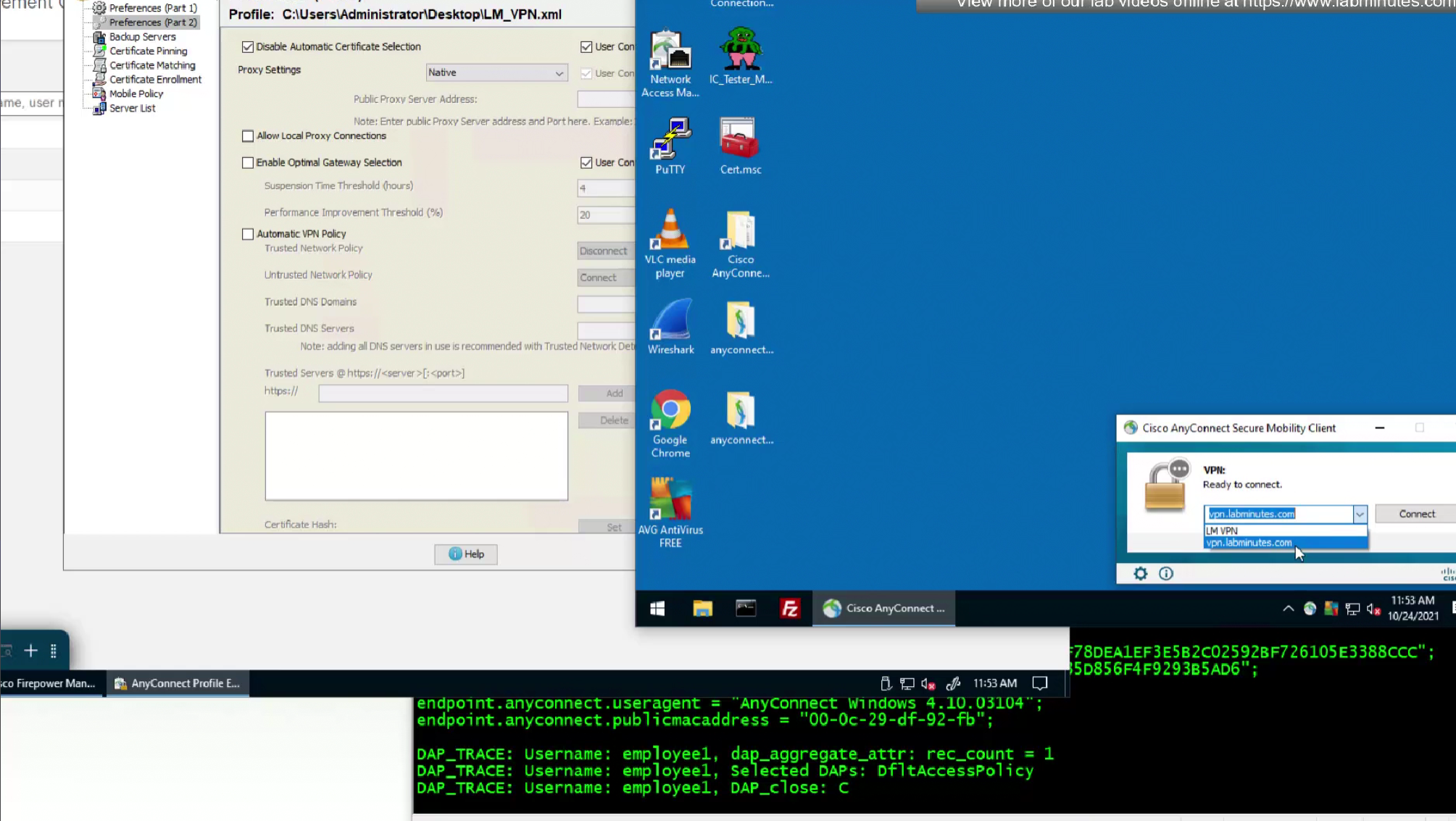
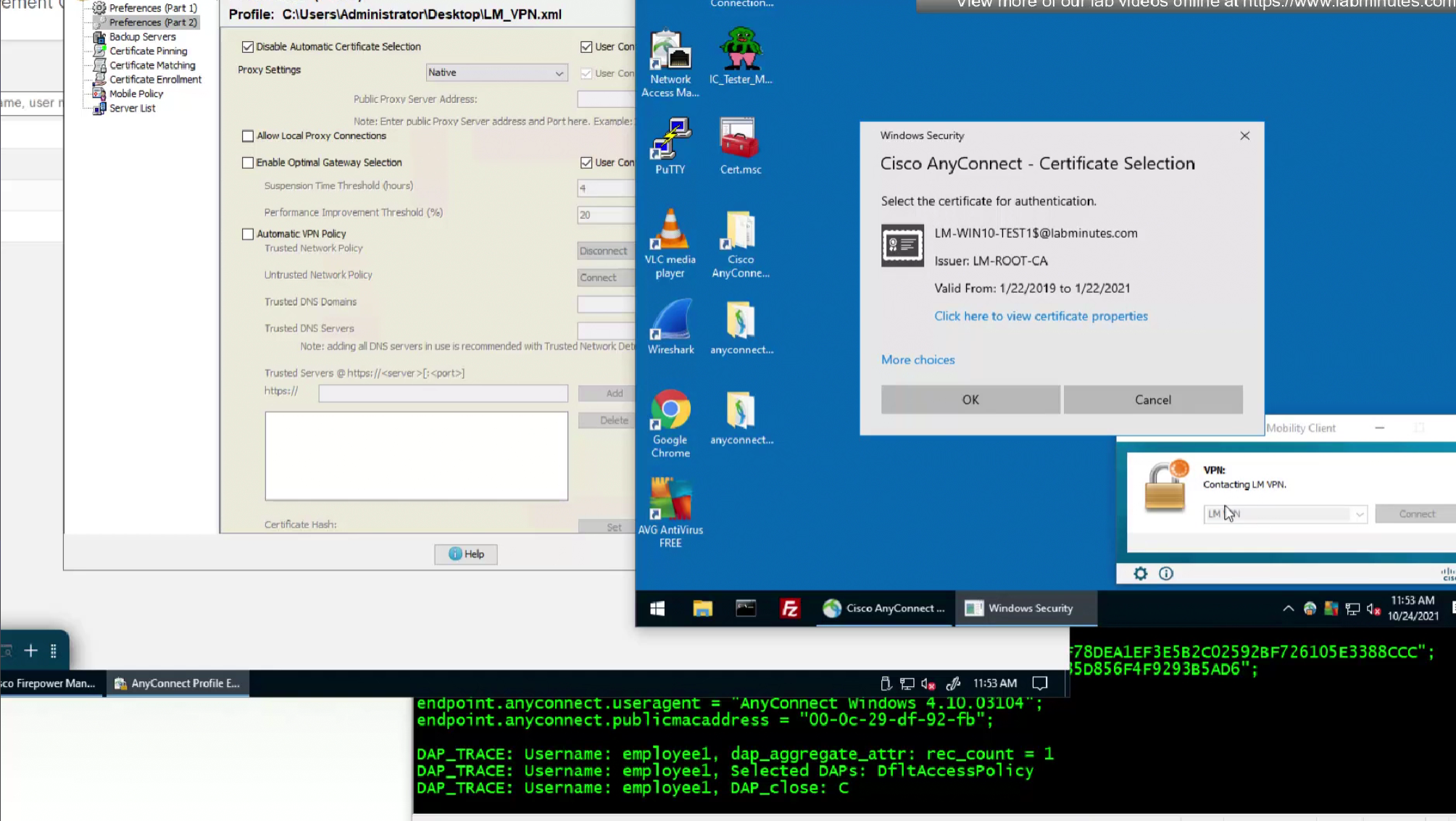
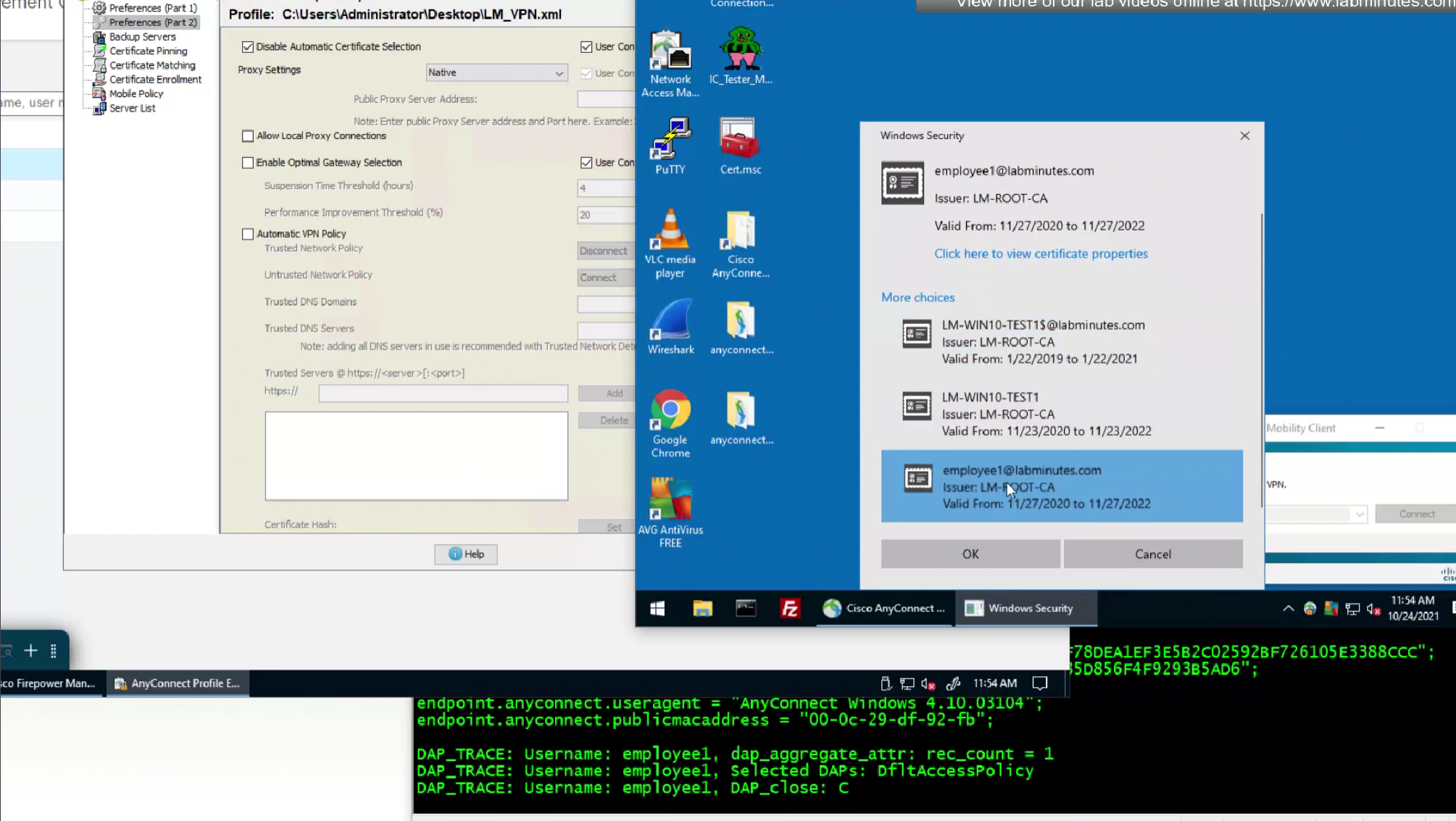
- Disable Automatic Certificate Selection (Windows only)—Disables automatic certificate selection by the client and prompts the user to select the authentication certificate.
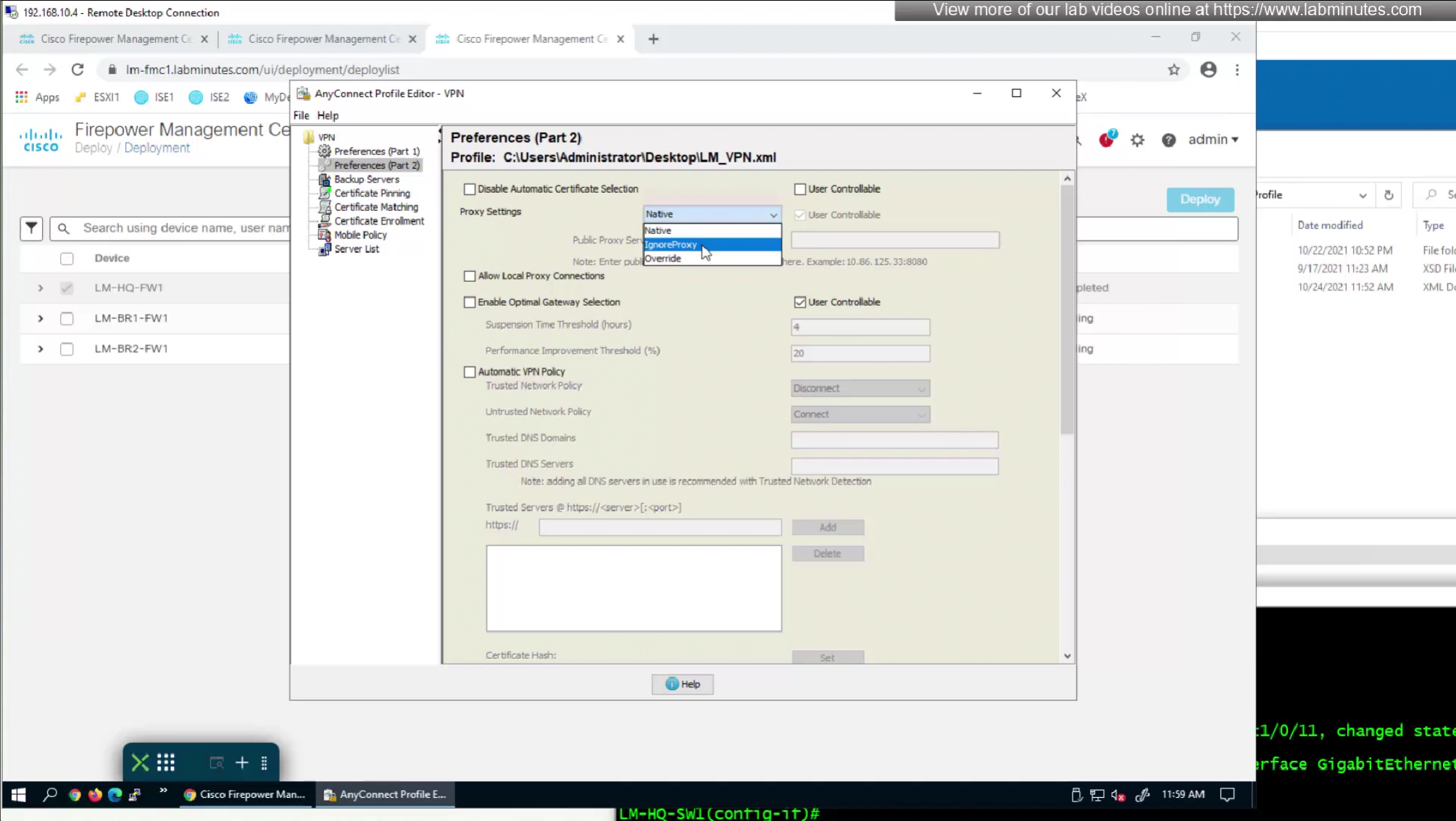
—————————————————————————————————— - Proxy Settings—It’s mainly used if the user’s existing proxy configuration would otherwise block the VPN connection.
- Native—The client tries both:
- First it tries Proxy settings configured by AnyConnect (global user preferences).
- if above does not work then it tries Proxy settings configured in the browser.
- Global AnyConnect proxy =
proxy1.corp.com:8080 - Browser proxy =
proxy2.isp.com:3128 - With Native, AnyConnect will try
proxy1.corp.com:8080first, and if that fails (or rules require), it may then useproxy2.isp.com:3128
- Global AnyConnect proxy =
- IgnoreProxy—Ignores the browser proxy settings on the user’s computer and only Only AnyConnect’s own settings (if defined) are used.
- Override—Lets you manually configure a public proxy server address, manually set a public proxy (mandatory on Linux).
——————————————————————————————————
- Native—The client tries both:
- Allow Local Proxy Connections—This controls whether the AnyConnect client permits connections through a locally running proxy service on the endpoint (the user’s machine). A local proxy is software running on
localhost(127.0.0.1) that intercepts traffic before it goes out to the network. Examples: Web filtering software (e.g., antivirus that scans HTTP/HTTPS traffic). Local anonymizers or debugging tools (like Fiddler, Burp Suite, Charles Proxy).
Enterprise DLP or monitoring software that forces traffic through a localhost proxy.- Enabled (Allow Local Proxy Connections = Yes):
AnyConnect allows VPN traffic to be sent through these localhost proxy applications.
Useful if security software on the endpoint requires traffic inspection. - Disabled (default, in many cases):
AnyConnect blocks connections through a local proxy.
The idea is to prevent users from bypassing corporate policies or tunneling VPN traffic through unapproved local tools.
——————————————————————————————————
- Enabled (Allow Local Proxy Connections = Yes):
- Enable Optimal Gateway Selection (OGS), (IPv4 clients only)—AnyConnect selects which secure gateway is best for connection or reconnection based on the round trip time (RTT), minimizing latency for Internet traffic without user intervention. You control the activation and deactivation of OGS and specify whether end users may control the feature themselves. Automatic Selection displays in the Connect To drop-down list on the Connection tab of the client GUI.
- Suspension Time Threshold (hours)
Example: If you set it to 4 hours
Laptop sleeps for 30 minutes → reconnects to the same gateway.
Laptop sleeps for 6 hours → re-runs gateway selection, might connect to a faster/closer gateway. - Performance Improvement Threshold (%)
This sets the minimum performance gain (measured as latency/round-trip time) that must be achieved before AnyConnect will switch you to a different secure gateway after resuming.
Default = 20% improvement.
So: if the newly tested gateway is less than 20% better than the one you had → AnyConnect stays with the current gateway.
If the improvement is 20% or more → it will trigger a reconnection to the better gateway.
Example:
Current gateway latency = 100ms
Another gateway tested at resume = 92ms → only 8% improvement → stay put.
Another gateway tested = 75ms → 25% improvement → switch to that gateway.
In simple terms:
Suspension Time Threshold = “Only reconsider gateways if I’ve been asleep for X hours.”
Performance Improvement Threshold = “Only bother switching gateways if the new one is at least Y% faster.”
——————————————————————————————————
- Suspension Time Threshold (hours)
- Automatic VPN Policy (Windows and macOS only)—Enables Trusted Network Detection allowing AnyConnect to automatically manage when to start or stop
If disabled, VPN connections can be started and stopped manually just like normal.
Setting an Automatic VPN Policy does not prevent users from manually controlling a VPN connection, it simply sets additional behavior of automatic connect and disconnect- Trusted Network Policy—Action AnyConnect automatically turns on the VPN connection when the user is inside the corporate network (the trusted network).Disconnect (Default)—Disconnects the VPN connection upon the detection of the trusted network
- Connect—Initiates a VPN connection upon the detection of the trusted network.
- Do Nothing—Takes no action in the untrusted network.
Setting both the Trusted Network Policy and Untrusted Network Policy to Do Nothing disables Trusted Network Detection. - Pause—AnyConnect suspends the VPN session instead of disconnecting it if a user enters a trusted network after establishing a VPN session from outside the trusted network. When the user goes outside the trusted network again, AnyConnect resumes the session. This feature is for the user’s convenience because it eliminates the need to establish a new VPN session after leaving a trusted network.
- Untrusted Network Policy—AnyConnect starts the VPN connection when the user is outside the corporate network (the untrusted network). This feature encourages greater security awareness by initiating a VPN connection when the user is outside the trusted network.
- Connect (Default)—Initiates the VPN connection upon the detection of an untrusted network.
- Do Nothing—Takes no action in the trusted network. This option disables Always-On VPN.
Setting both the Trusted Network Policy and Untrusted Network Policy to Do Nothing disables Trusted Network Detection.
- Trusted DNS Domains
This is a list of DNS suffixes (domain endings) that are considered trusted.
They are written as a string separated by commas, e.g.:
*.cisco.com,*.example.org
Wildcard support (*) allows flexibility, so *.cisco.com would match vpn.cisco.com, mail.cisco.com, etc.
The VPN client checks the DNS suffixes assigned to the network interface. If one matches a trusted suffix, the network may be treated as trusted. - Always On—Always-On makes the VPN connect automatically when a user logs in to Windows or macOS. It ensures the device always uses the VPN, protecting it from security risks on untrusted networks. The setting can be applied through group policies or dynamic access policies (DAPs). If there’s a conflict: If Always-On is enabled in one policy but disabled in another (DAP or group policy), the disable setting takes priority.
- Allow VPN Disconnect—Controls whether the Disconnect button is shown in the AnyConnect client when using Always-On VPN. If allowed: the user can manually disconnect.
If not allowed: the user has no option to disconnect; VPN stays active.
User flexibility: Sometimes a user needs to disconnect and reconnect to another VPN gateway (e.g., if one data center is slow or down).
Troubleshooting: If a session is “stuck” after an interruption, being able to disconnect helps recovery.
When a user disconnects, all network interfaces are locked — meaning the device can’t just fall back to the public internet. It can only reconnect to a VPN gateway. This prevents “leakage” of traffic outside the VPN.
The Disconnect option does not mean the user can access the internet freely. Even when disconnected, the interfaces are locked down to only allow VPN re-establishment.
Precedence = DAP → Group Policy → Profile
If profile says “Allow Disconnect = Yes”, but Group Policy says No, → No disconnect button.
If Group Policy allows disconnect, but DAP disables it, → No disconnect button (DAP wins).
If DAP allows disconnect, but Group Policy disables, → DAP wins again → disconnect button shows.
Without the disconnect button, users cannot recover if their VPN gateway session is unstable.
With disconnect enabled, traffic is still protected (interfaces locked), but users can reset/reconnect. - Connect Failure Policy—This setting decides what happens if Always-On VPN is enabled, but the VPN cannot be established (e.g., the ASA is down or unreachable). It only applies when both Always-On and Allow VPN Disconnect are enabled.
Closed (Fail-Close)
Blocks all network access when the VPN cannot connect.
Protects the device and corporate assets by preventing exposure to untrusted networks when the VPN tunnel is unavailable.
High-security environments where no traffic should go outside the VPN.
Open (Fail-Open)
Allows normal network access even if the VPN cannot connect.
Ensures user productivity when the VPN service is temporarily unavailable, at the cost of reduced protection.
Environments where usability and availability take priority over strict security.
If you deploy a closed connection policy, we highly recommend that you follow a phased approach. For example, first deploy Always-On VPN with a connect failure open policy and survey users for the frequency with which AnyConnect does not connect seamlessly. Then deploy a small pilot deployment of a connect failure closed policy among early-adopter users and solicit their feedback. Expand the pilot program gradually while continuing to solicit feedback before considering a full deployment. As you deploy a connect failure closed policy, be sure to educate the VPN users about the network access limitation as well as the advantages of a connect failure closed policy.- Allow Captive Portal Remediation—Lets AnyConnect lift the network access restrictions imposed by the closed connect failure policy when the client detects a captive portal (hotspot). Hotels and airports typically use captive portals to require the user to open a browser and satisfy conditions required to permit Internet access. By default, this parameter is unchecked to provide the greatest security; however, you must enable it if you want the client to connect to the VPN if a captive portal is preventing it from doing so.
- Remediation Timeout—Number of minutes AnyConnect lifts the network access restrictions. This parameter applies if the Allow Captive Portal Remediation parameter is checked and the client detects a captive portal. Specify enough time to meet typical captive portal requirements (for example, 5 minutes).
- Apply Last VPN Local Resource Rules—If the VPN is unreachable, the client applies the last client firewall it received from the ASA, which may include ACLs allowing access to resources on the local LAN.
- Trusted Network Policy—Action AnyConnect automatically turns on the VPN connection when the user is inside the corporate network (the trusted network).Disconnect (Default)—Disconnects the VPN connection upon the detection of the trusted network
- Captive Portal Remediation Browser Failover—Allows the end user to use an external browser (after closing the AnyConnect browser) for captive portal remediation.
- Allow Manual Host Input—Enables users to enter different VPN addresses than those listed in the drop-down box of the AnyConnect UI. If you uncheck this checkbox, the VPN connection choices are only those in the drop-down box, and users are restricted from entering a new VPN address.
- PPP Exclusion—For a VPN tunnel over a PPP connection, specifies whether and how to determine the exclusion route. The client can exclude traffic destined for the secure gateway from the tunneled traffic intended for destinations beyond the secure gateway. The exclusion route appears as a non-secured route in the Route Details display of the AnyConnect GUI. If you make this feature user controllable, users can read and change the PPP exclusion settings.
- Automatic—Enables PPP exclusion. AnyConnect automatically determines the IP address of the PPP server.
- Override—Enables PPP Exclusion using a predefined server IP address specified in the PPP Exclusion Server IP field. The PPP Exclusion Server IP field is only applicable to this Override method and should only be used when the Automatic options fails to detect the IP address of the PPP server.Checking User Controllable for the PPP Exclusion Server IP field allows the end user to manually update the IP address via the preferences.xml file. Refer to the Instruct Users to Override PPP Exclusion section.
- Disabled—PPP exclusion is not applied.
- Enable Scripting—Launches OnConnect and OnDisconnect scripts if present on the security appliance flash memory.
- Terminate Script On Next Event—Terminates a running script process if a transition to another scriptable event occurs. For example, AnyConnect terminates a running OnConnect script if the VPN session ends, and terminates a running OnDisconnect script if the client starts a new VPN session. On Microsoft Windows, the client also terminates any scripts that the OnConnect or OnDisconnect script launched, and all their script descendents. On macOS and Linux, the client terminates only the OnConnect or OnDisconnect script; it does not terminate child scripts.
- Enable Post SBL On Connect Script—Launches the OnConnect script if present, and SBL establishes the VPN session. (Only supported if VPN endpoint is running Microsoft Windows.)
- Retain VPN On Logoff—Determines whether to keep the VPN session when the user logs off a Windows OS.
- User Enforcement—Specifies whether to end the VPN session if a different user logs on. This parameter applies only if “Retain VPN On Logoff” is checked, and the original user logged off Windows when the VPN session was up.
- Authentication Timeout Values—By default, AnyConnect waits up to 12 seconds for an authentication from the secure gateway before terminating the connection attempt. AnyConnect then displays a message indicating the authentication timed out. Enter a number of seconds in the range of 10 to 120.

User controllable checkbox allows users to enable or disable those settings on their anyconnect client
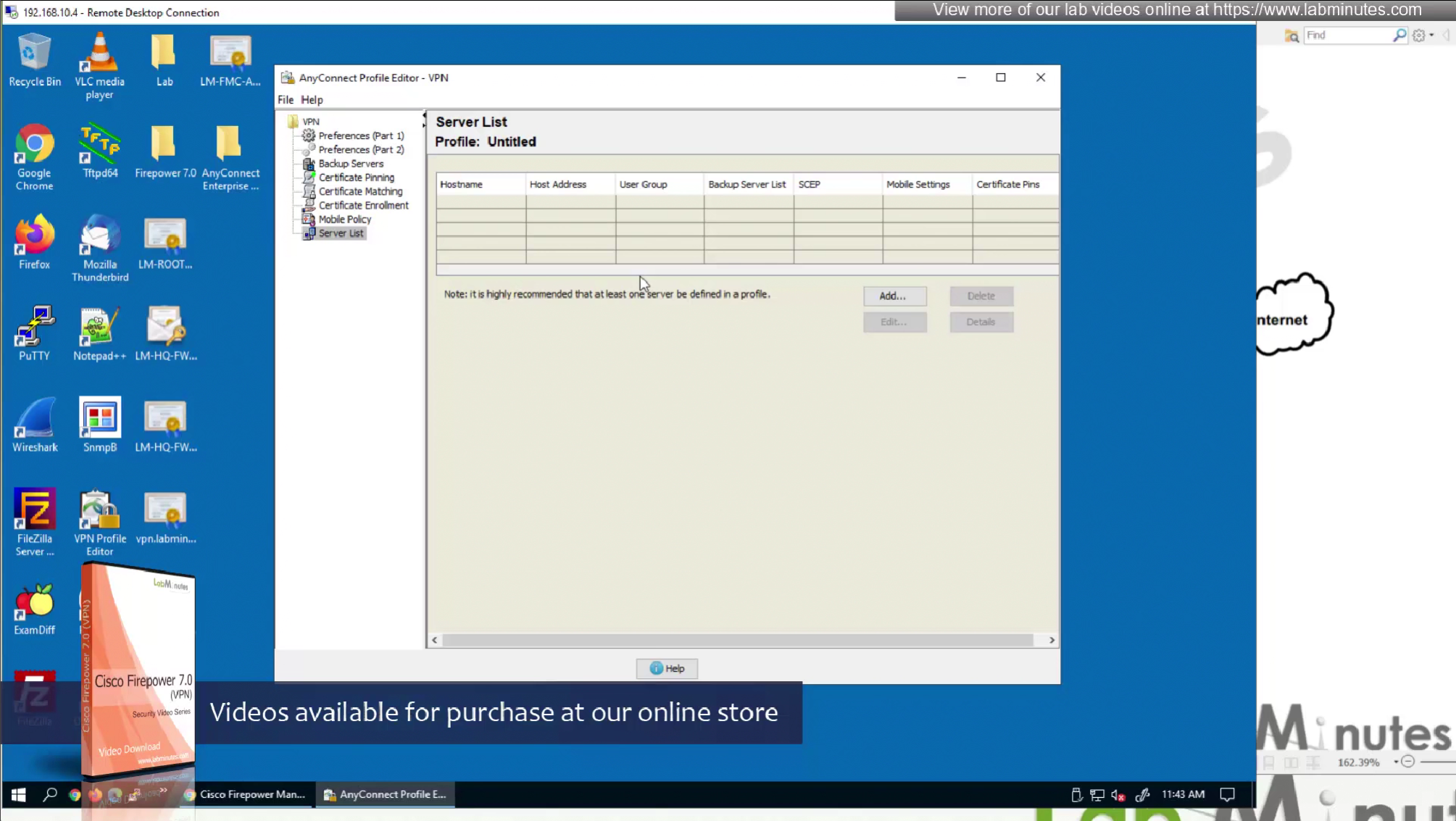
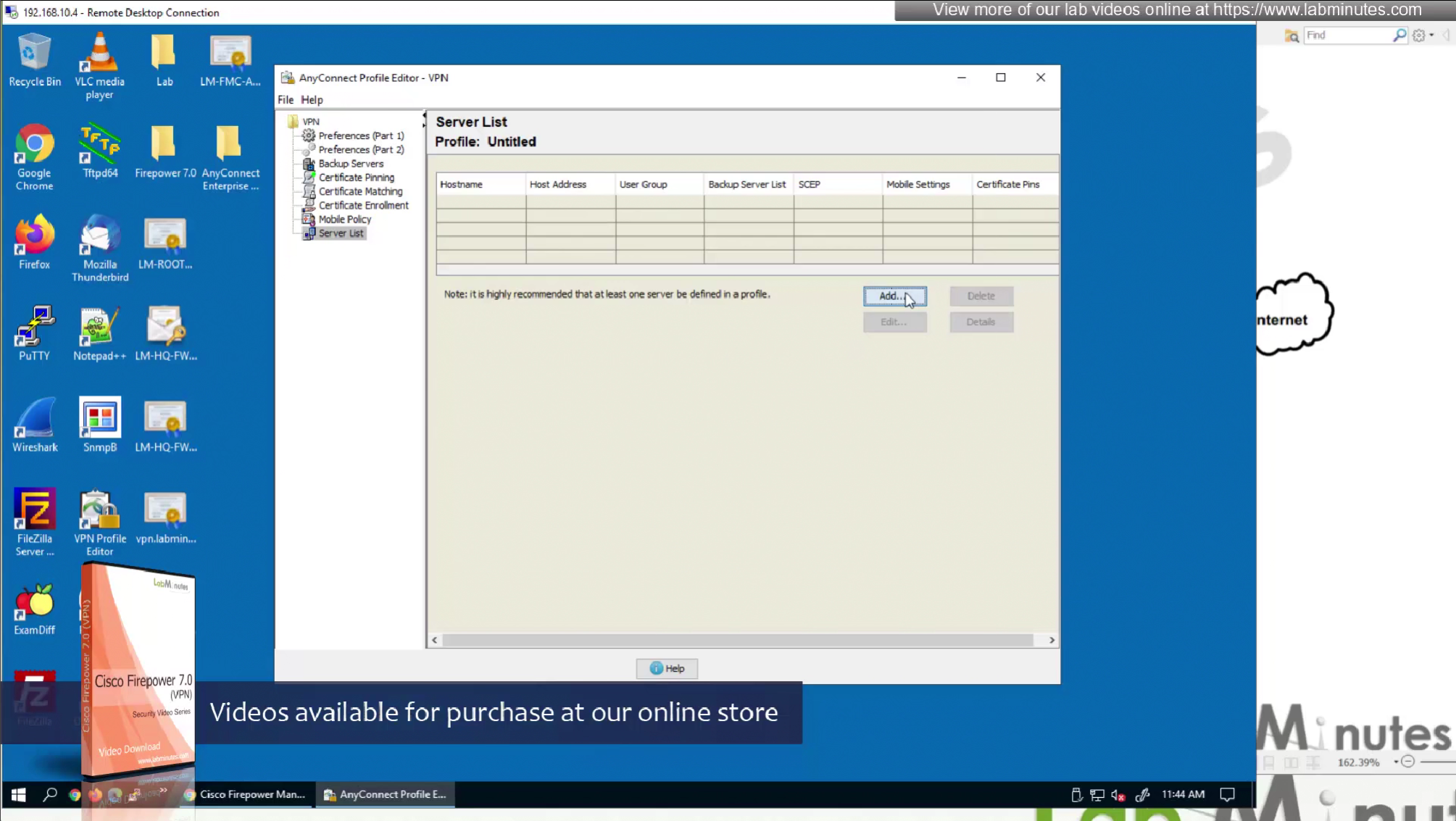
Server list is a list of name of servers and their IP
which users can select and connect to
once the anyconnect profile is on the machine, these servers since part of this anyconnect profile allow selection of servers in a drop down
Each server list entry has a Backup server creating a pair of servers, so if connection is not successful to the server, backup server is tried
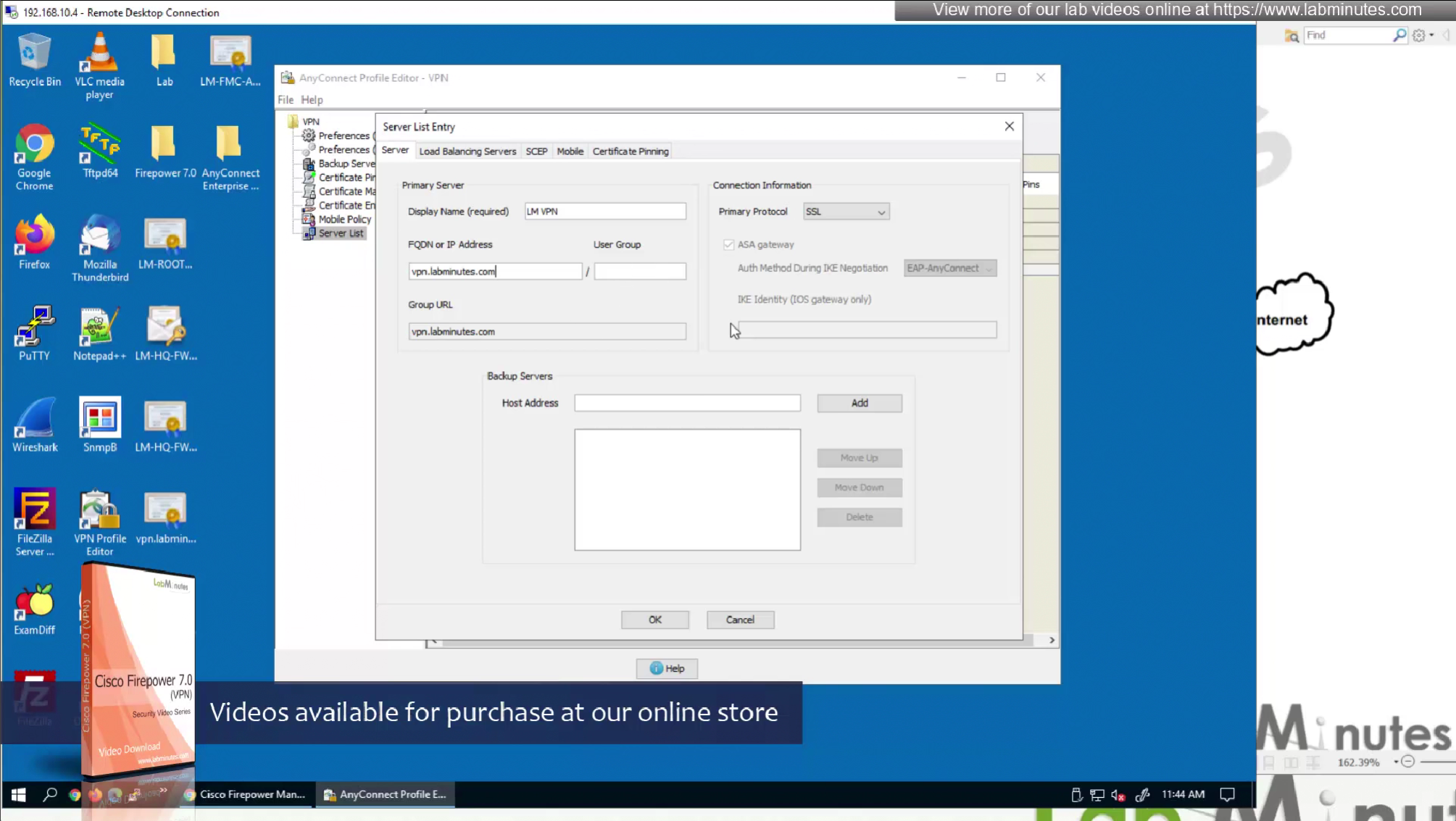
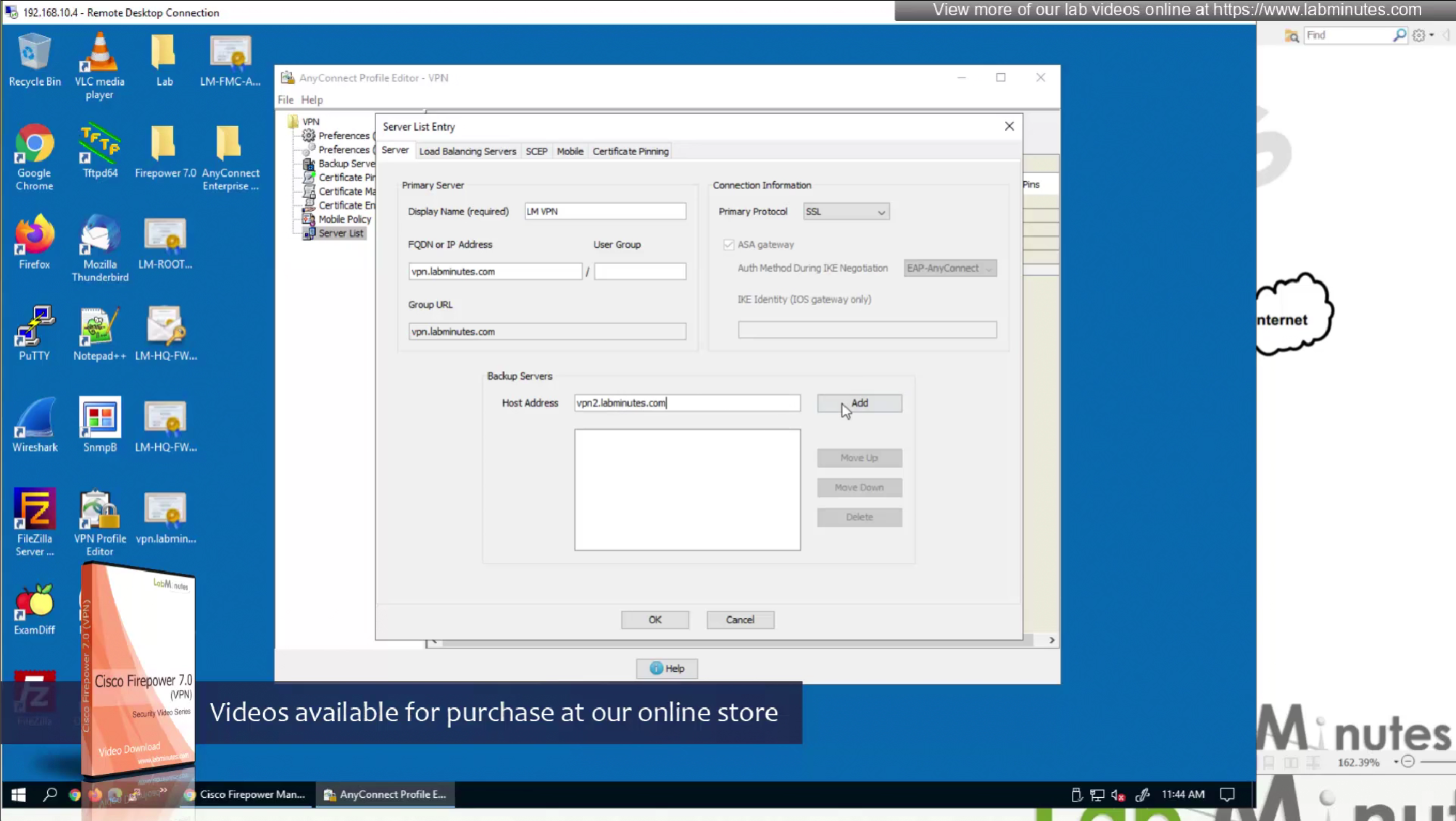
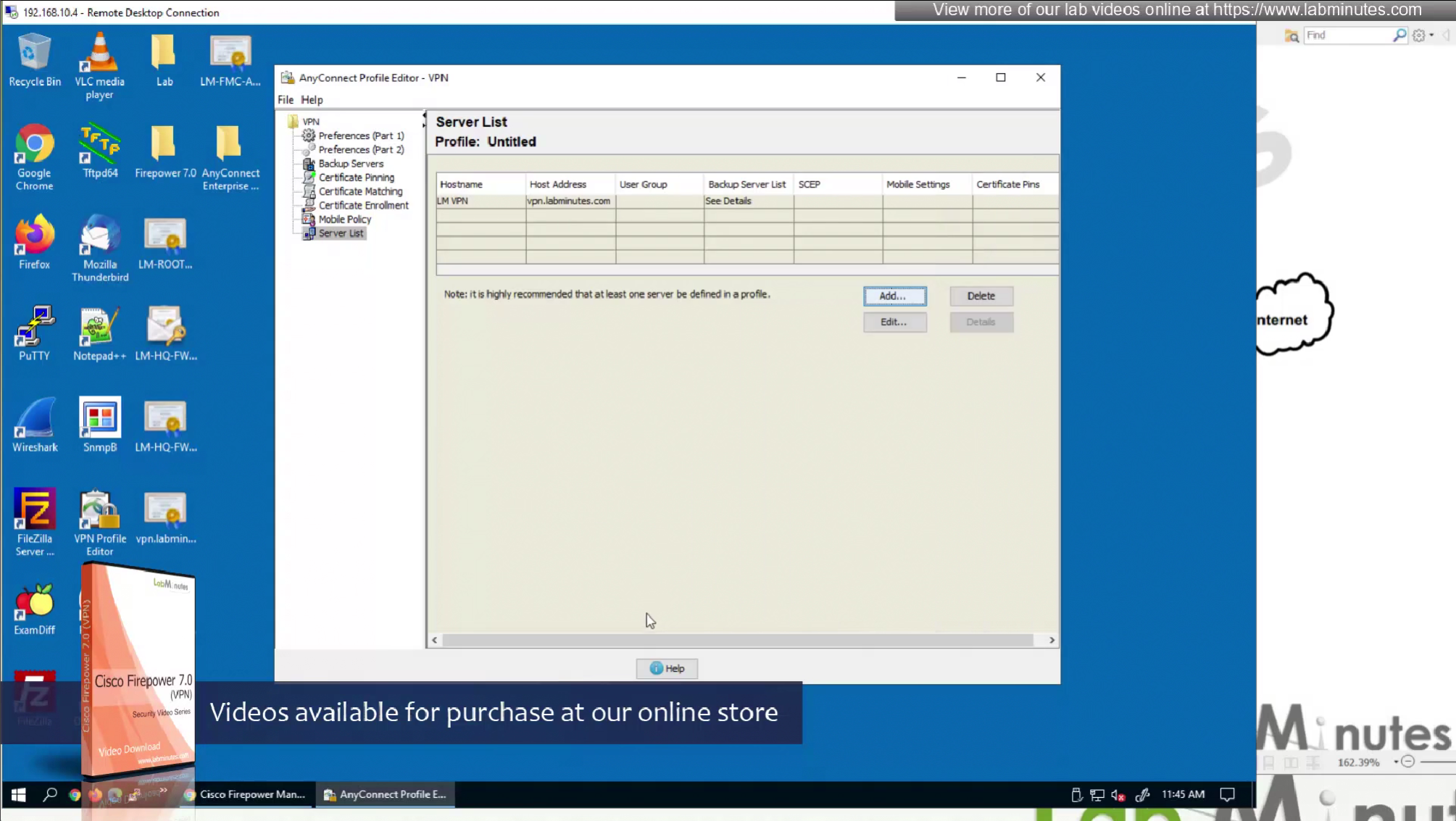
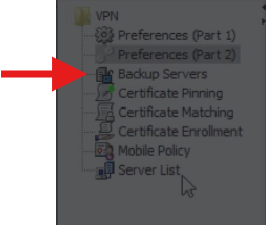
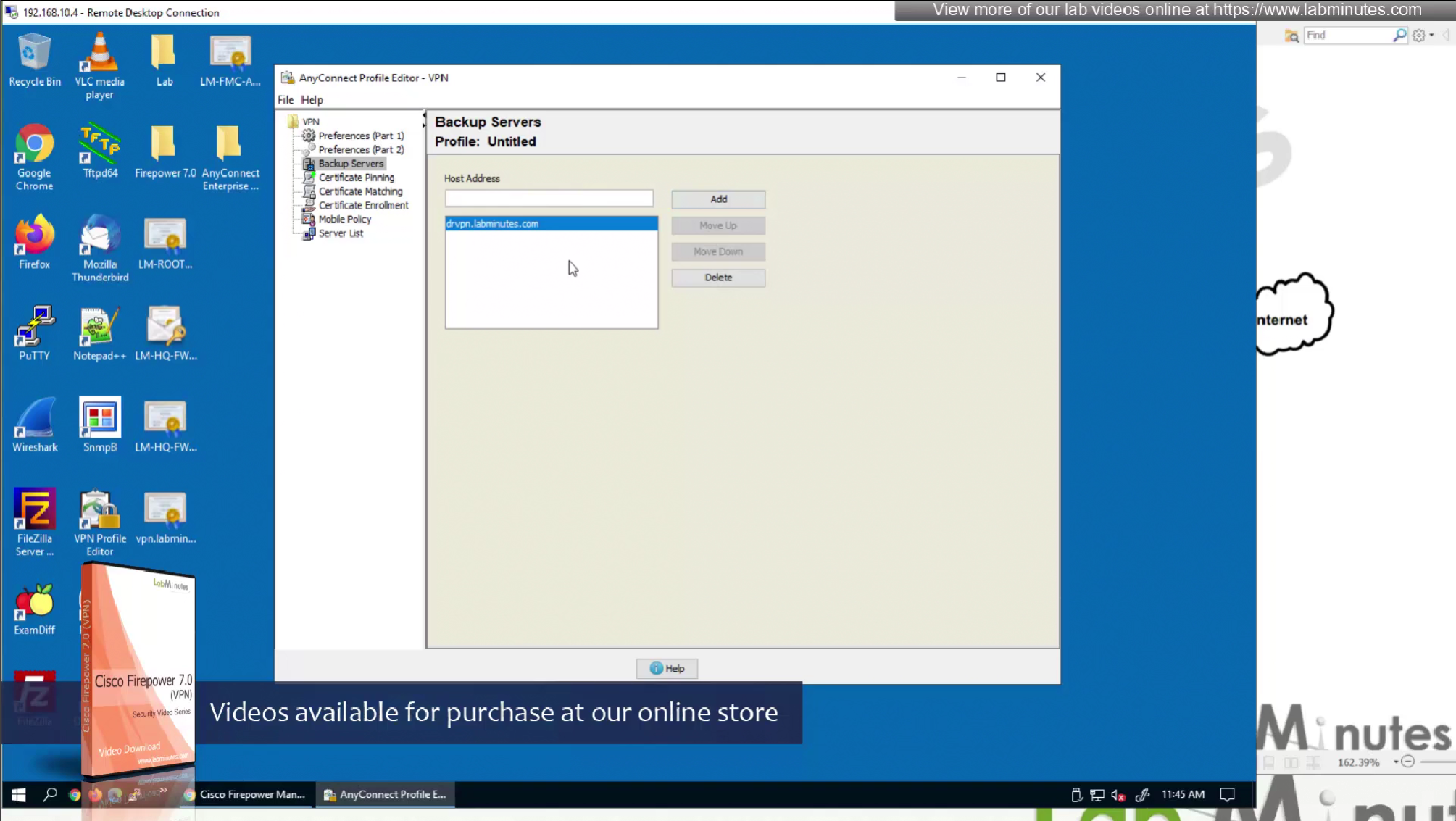
There is also a backup server section up above but that is to define a common backup server, this is only tried when all the servers in server list fail, this is like a smaller firewall in a DR DC

If server list has no server with no backup servers configured then global backup server will be used that is number 3 option in XML profile editor
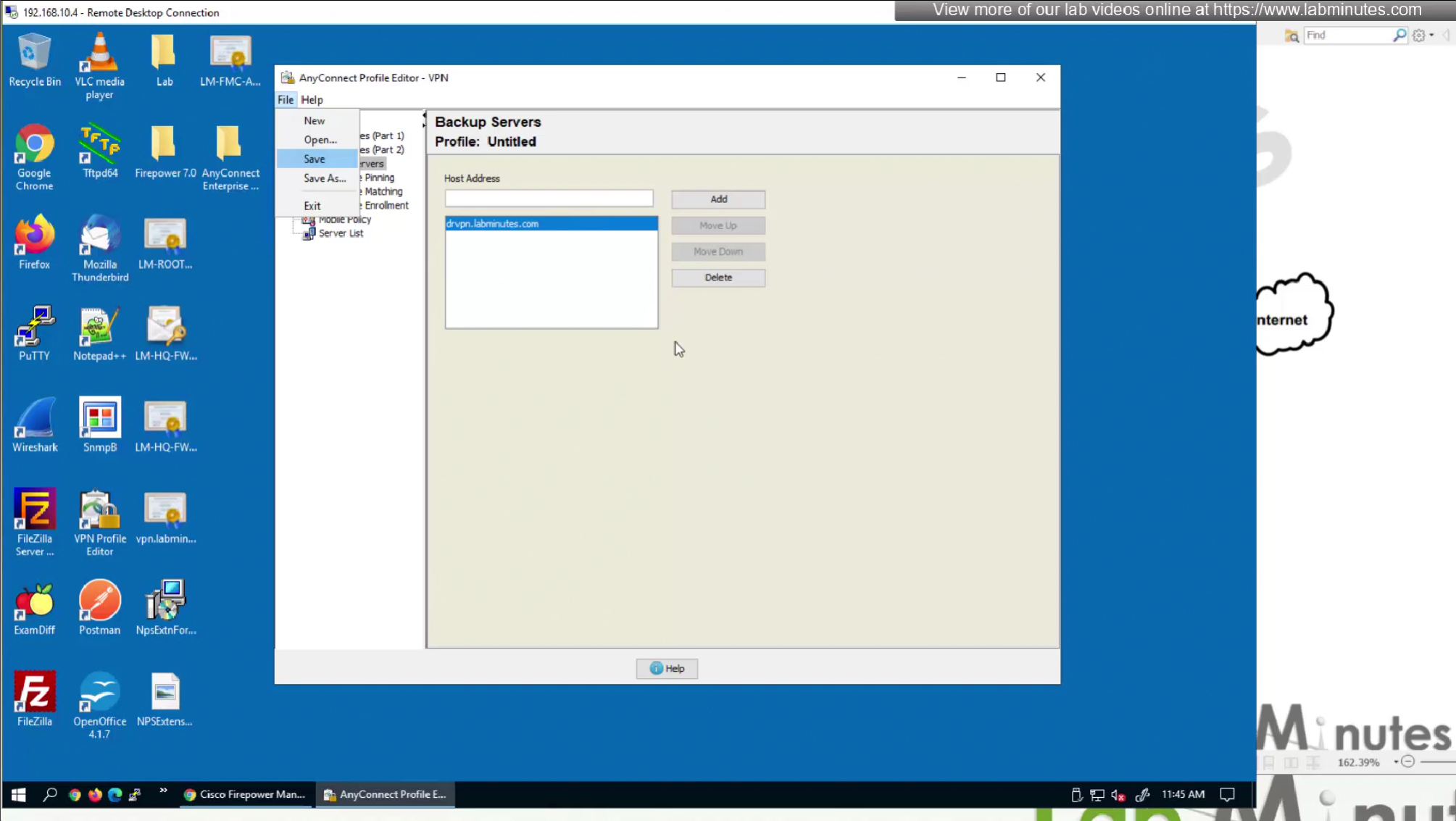
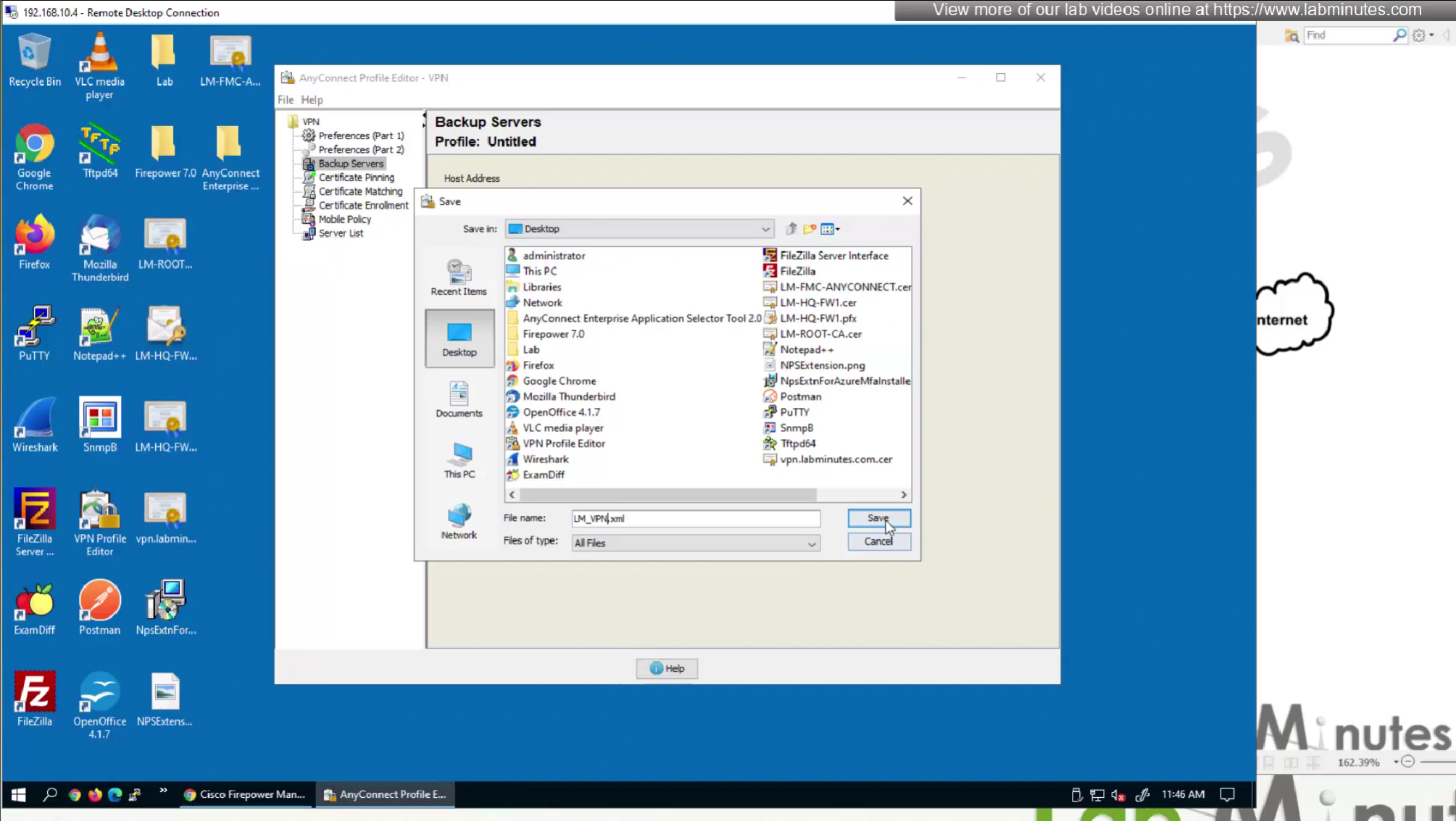
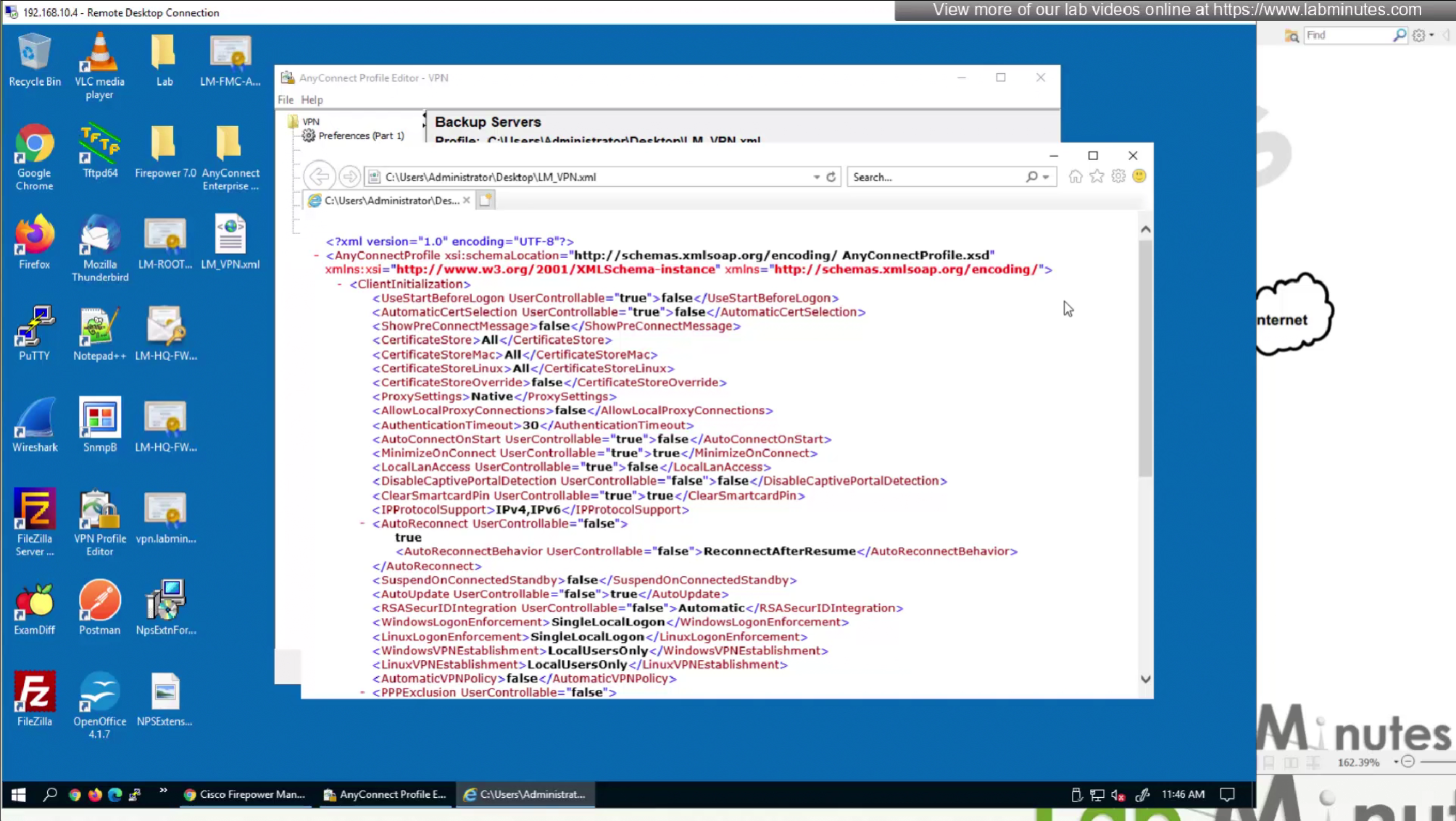
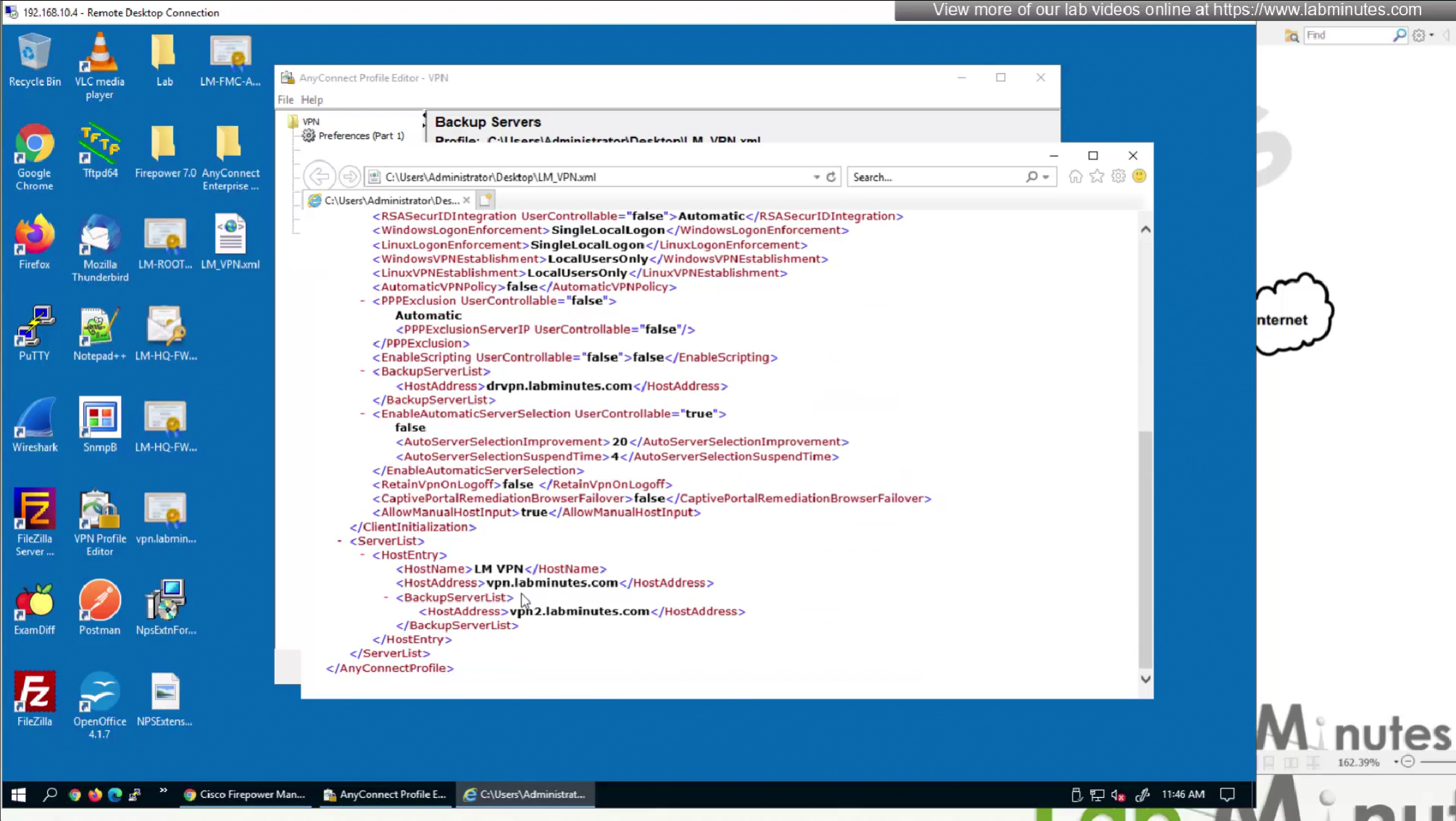
This XML file if we modify it, its of no use as next time we connect VPN this file will be overwritten, you can even delete the file and that will not make any difference
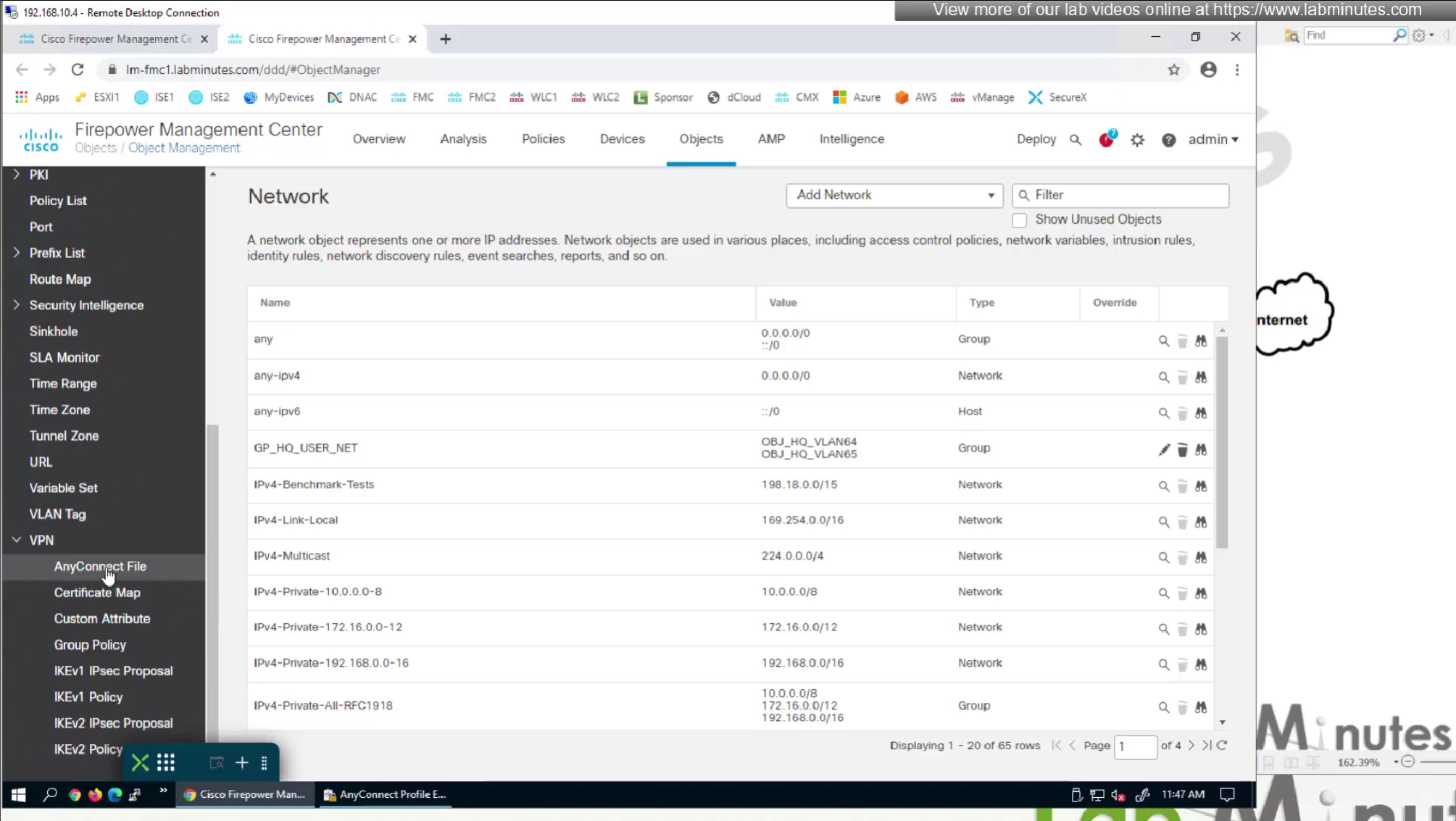
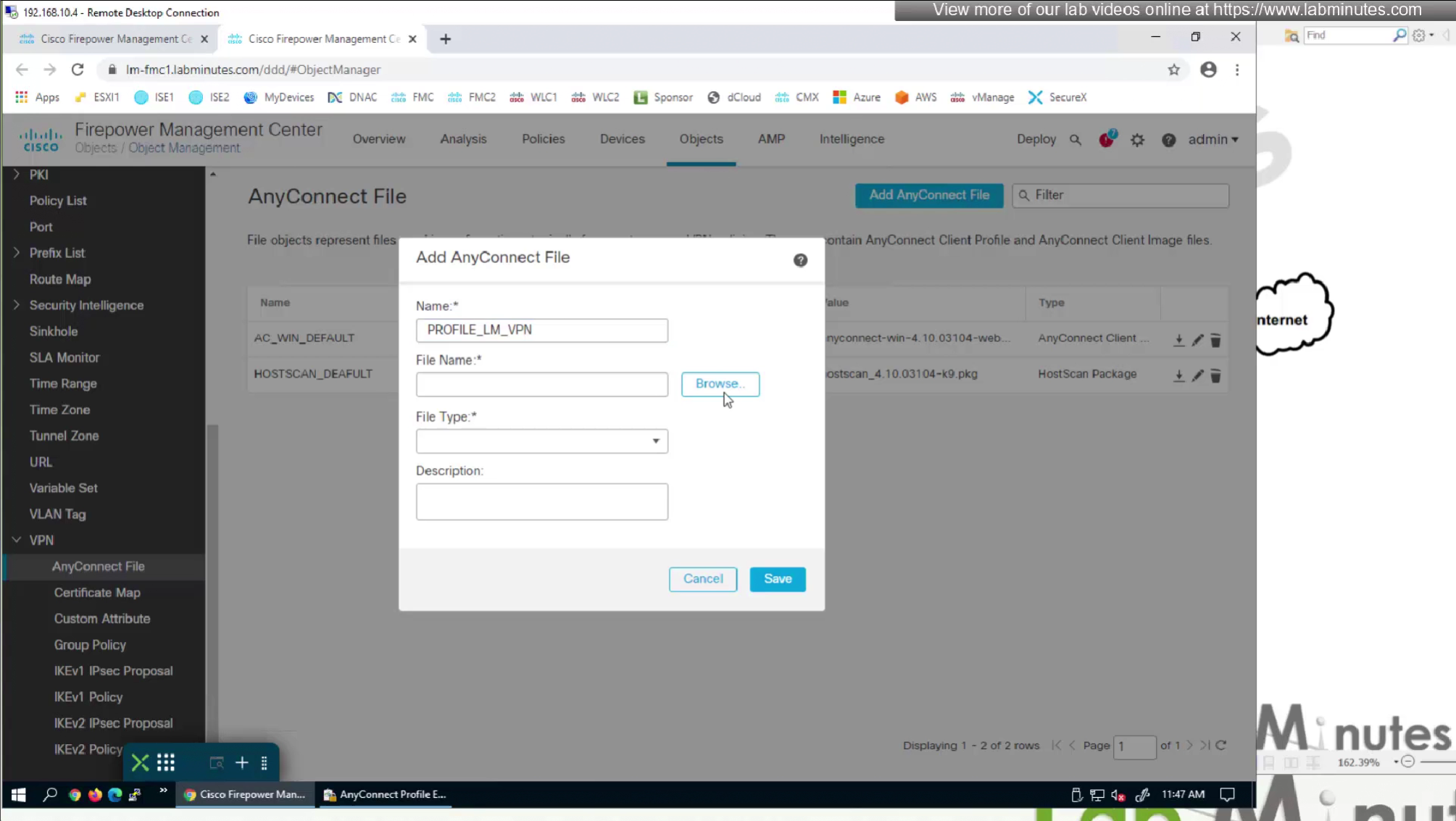
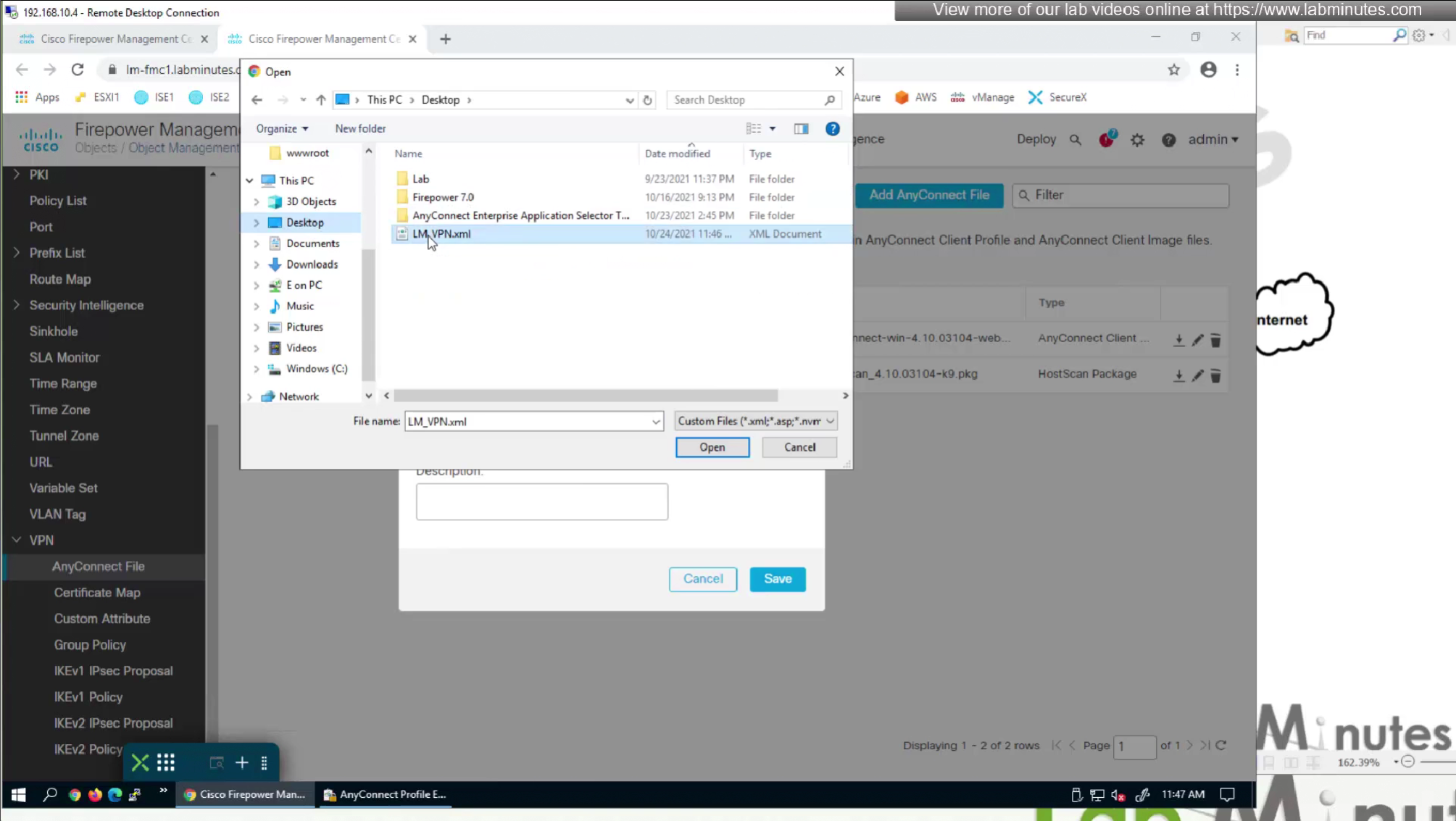

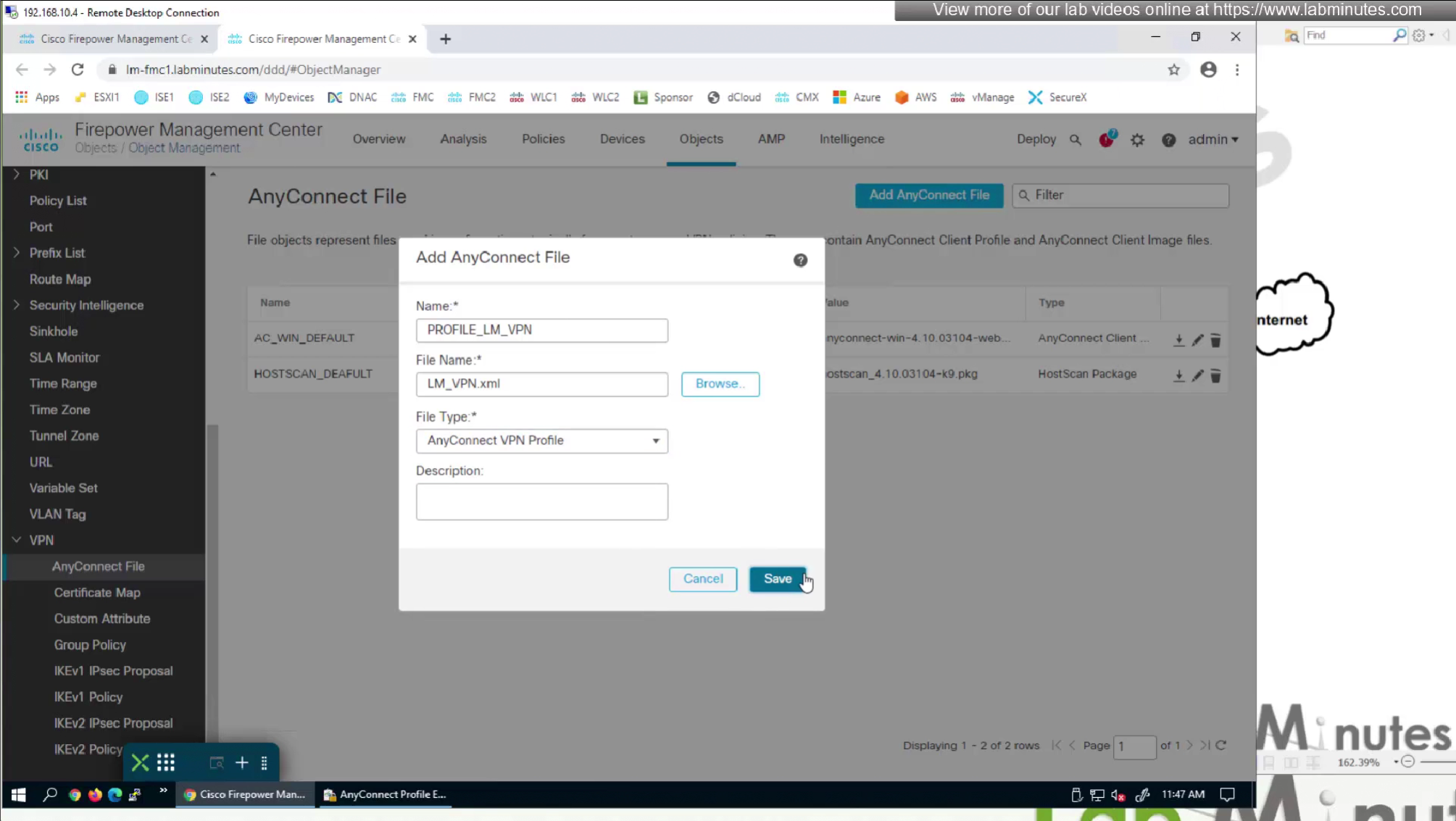


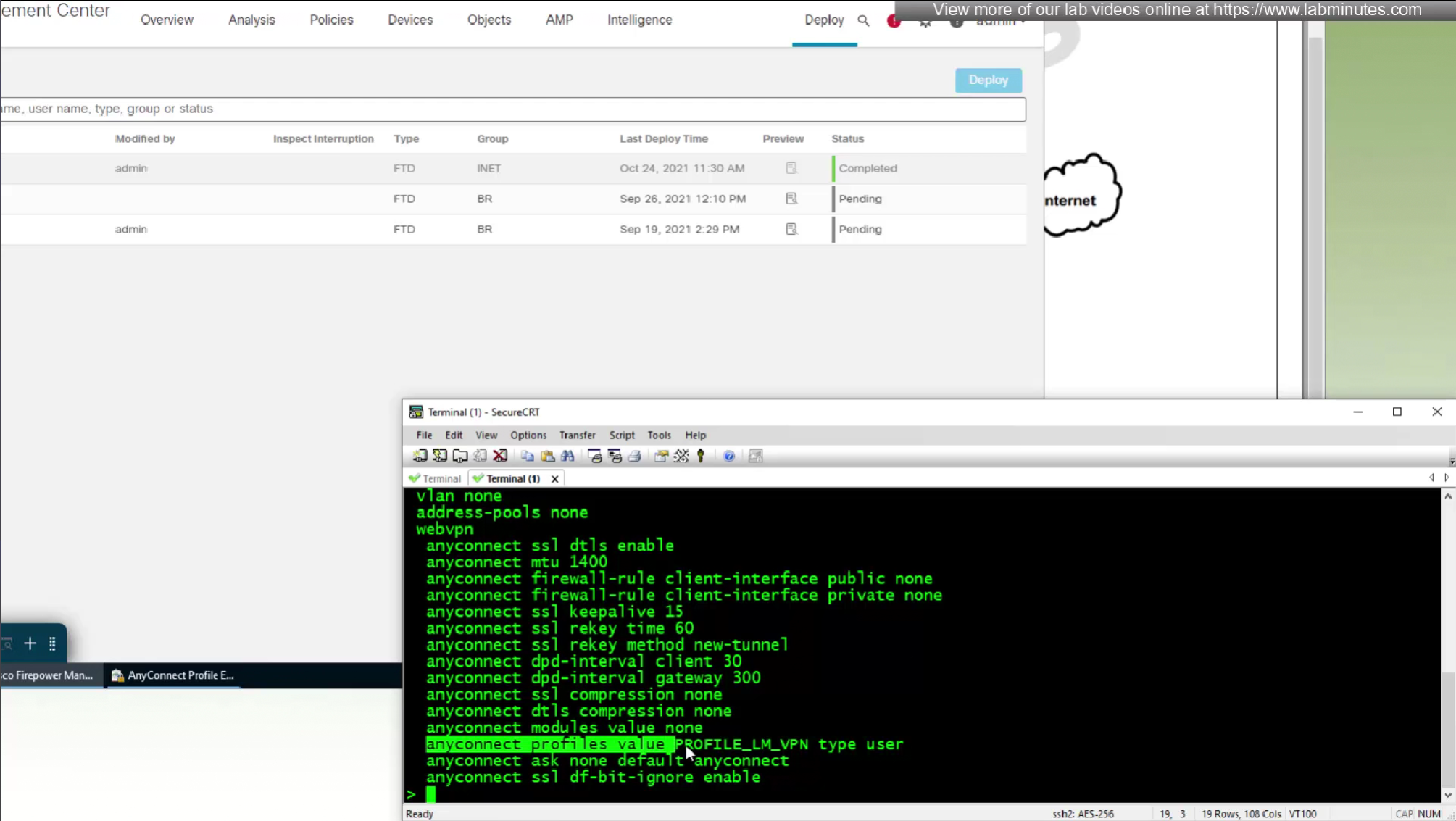
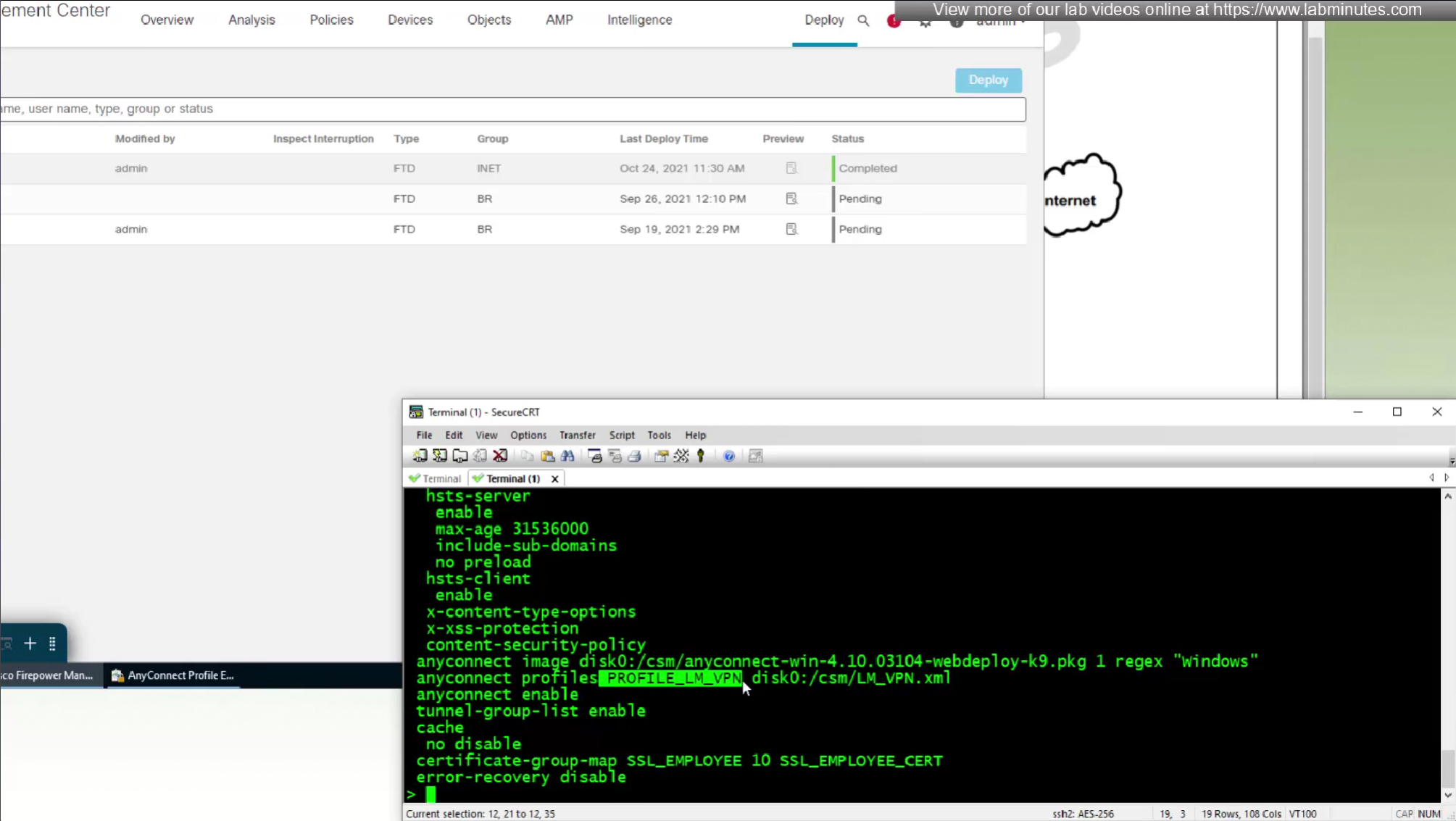

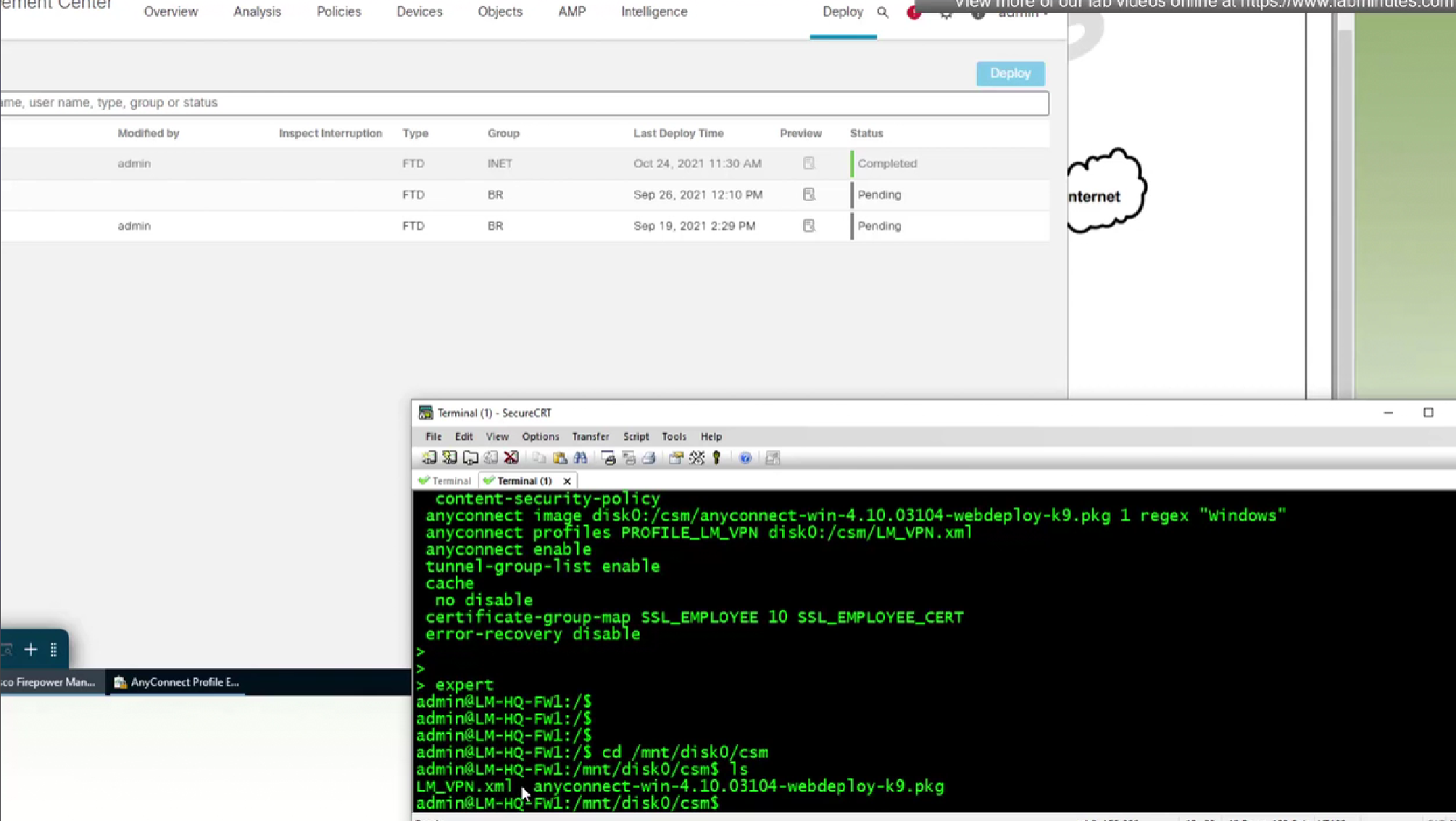
expert
cd /mnt/disk0/csm
ls
! download that xml file using cat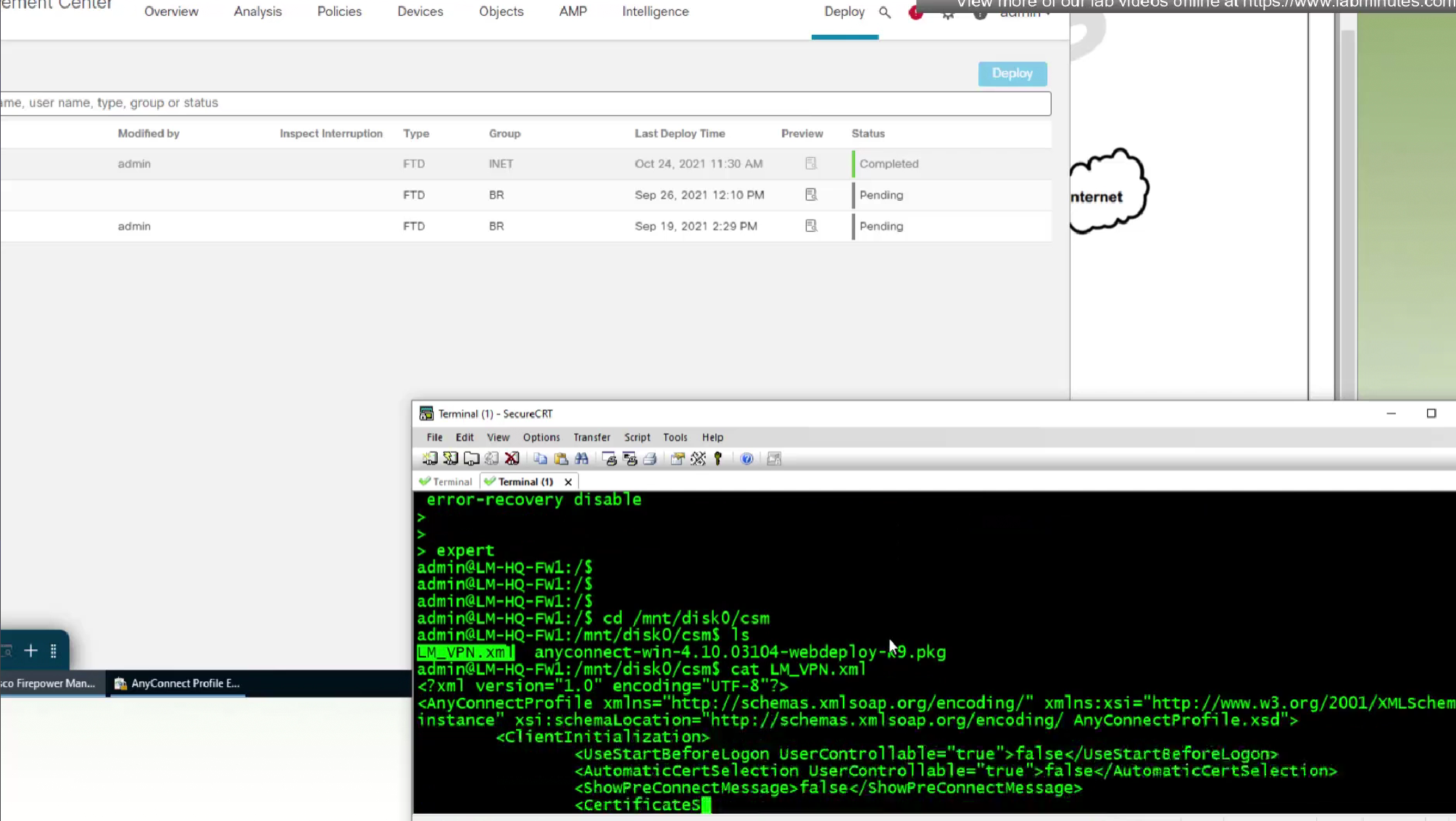
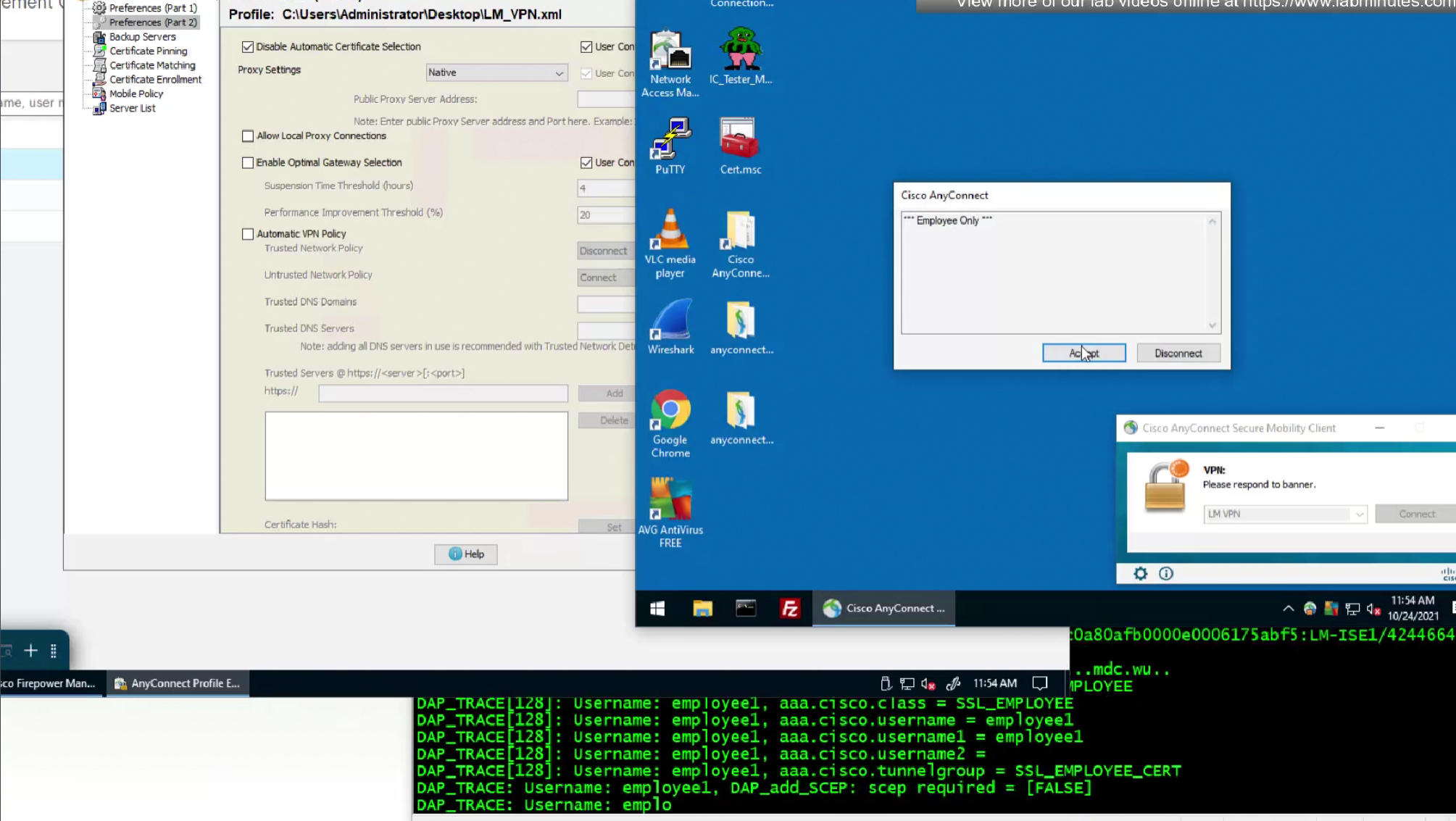
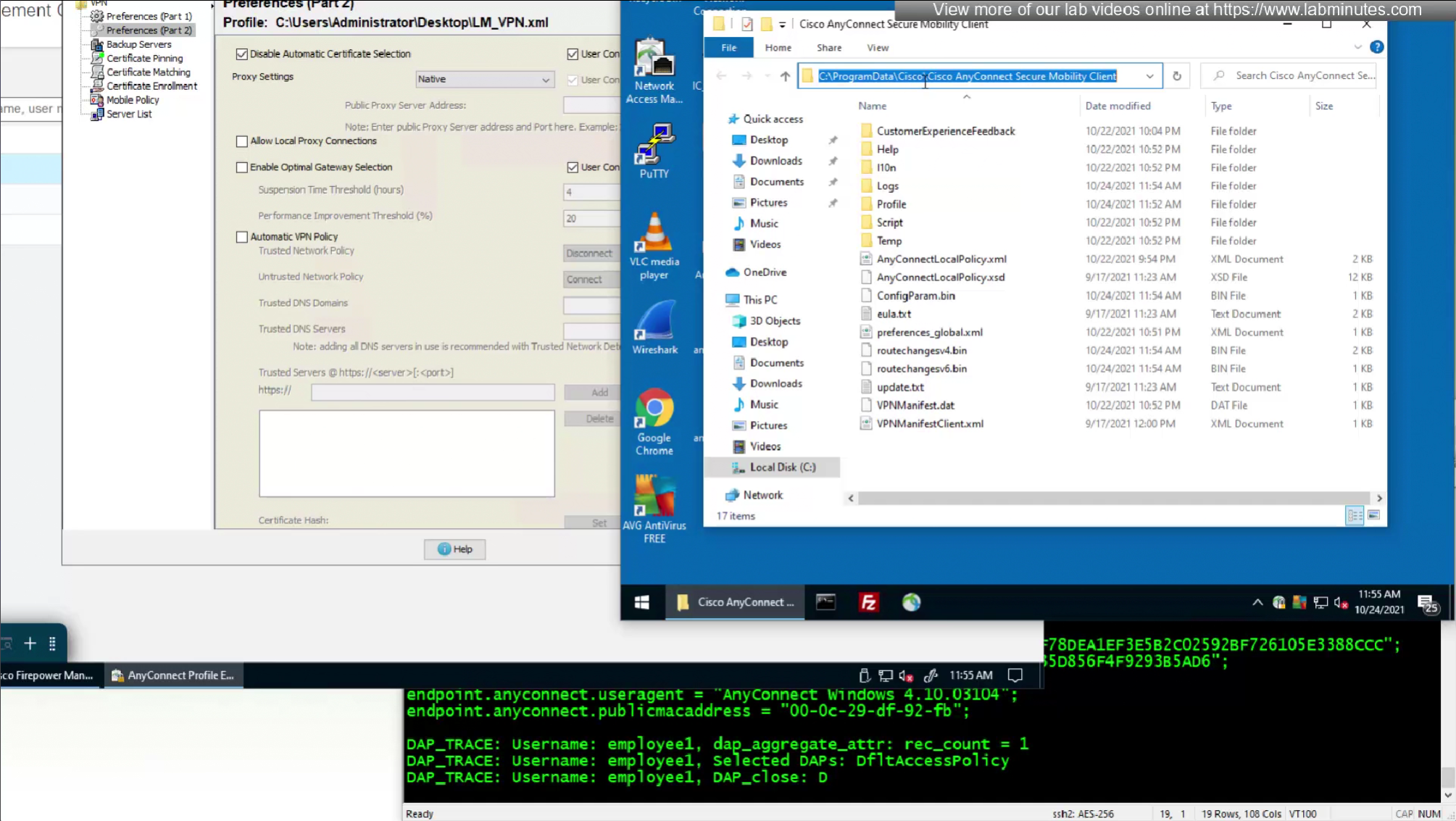
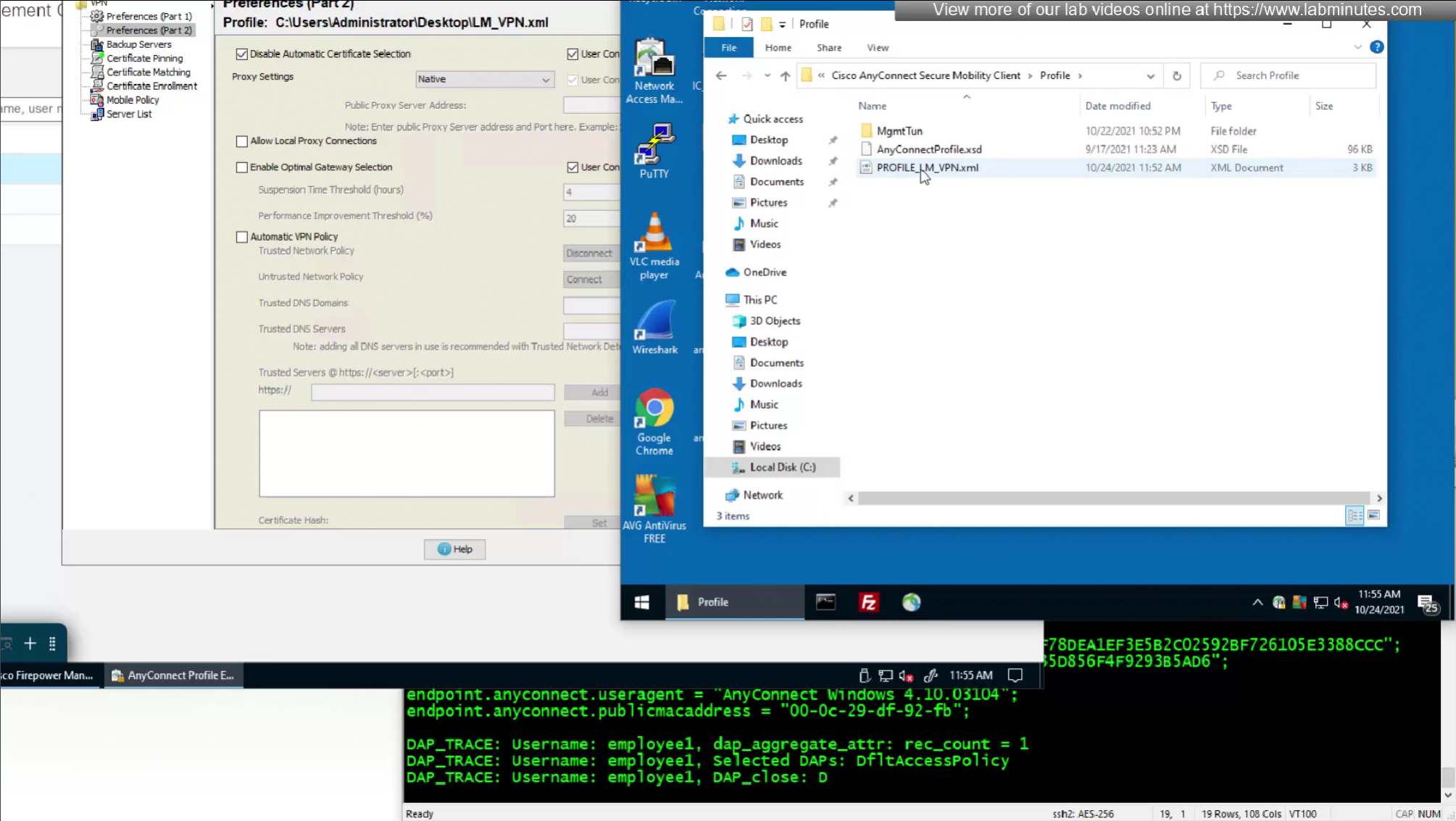
C:\ProgramData\Cisco\Cisco AnyConnect Secure Mobility Client\Profile\
or
C:\ProgramData\Cisco\Cisco Secure Client\VPN\Profile
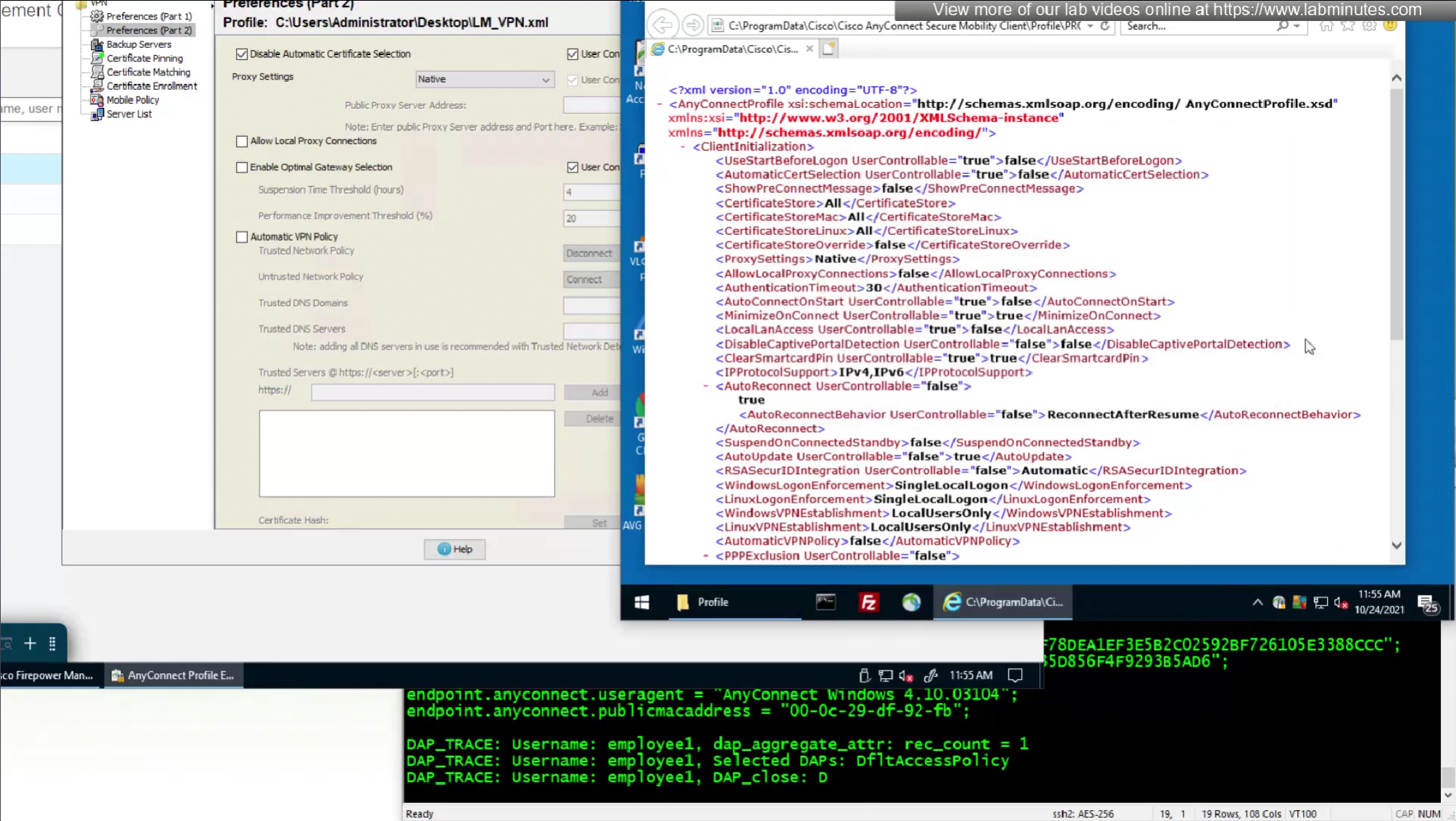

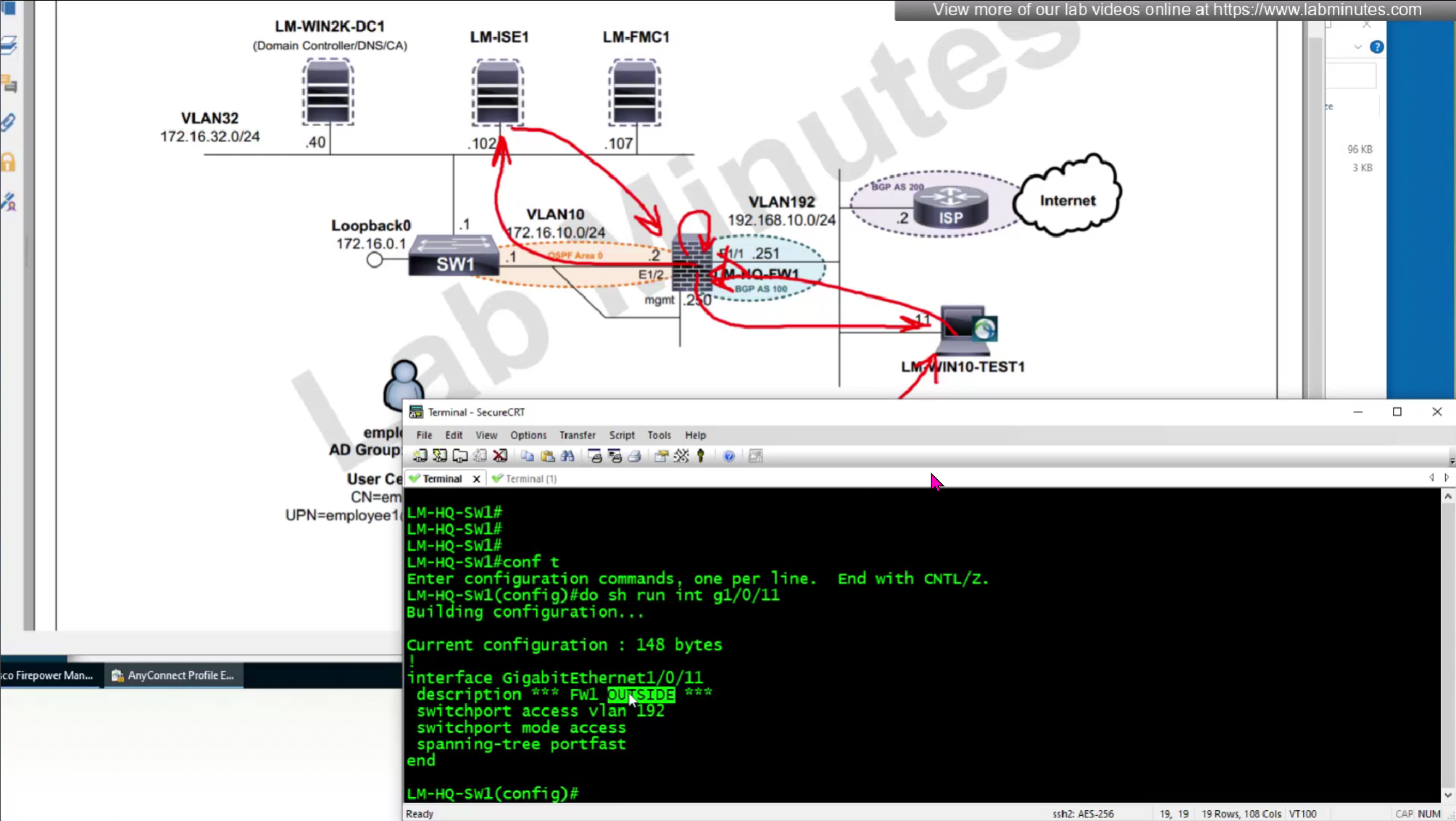
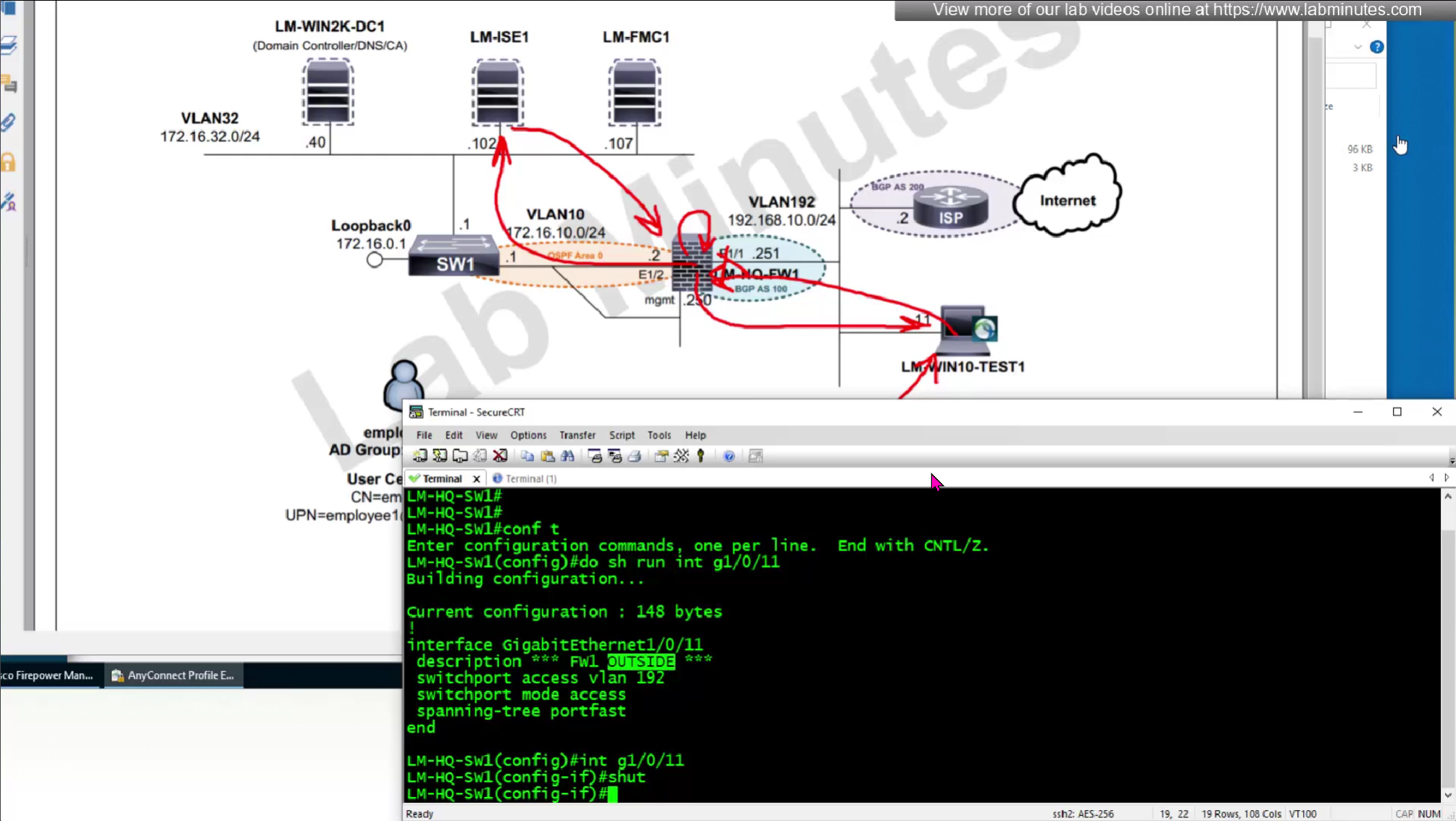

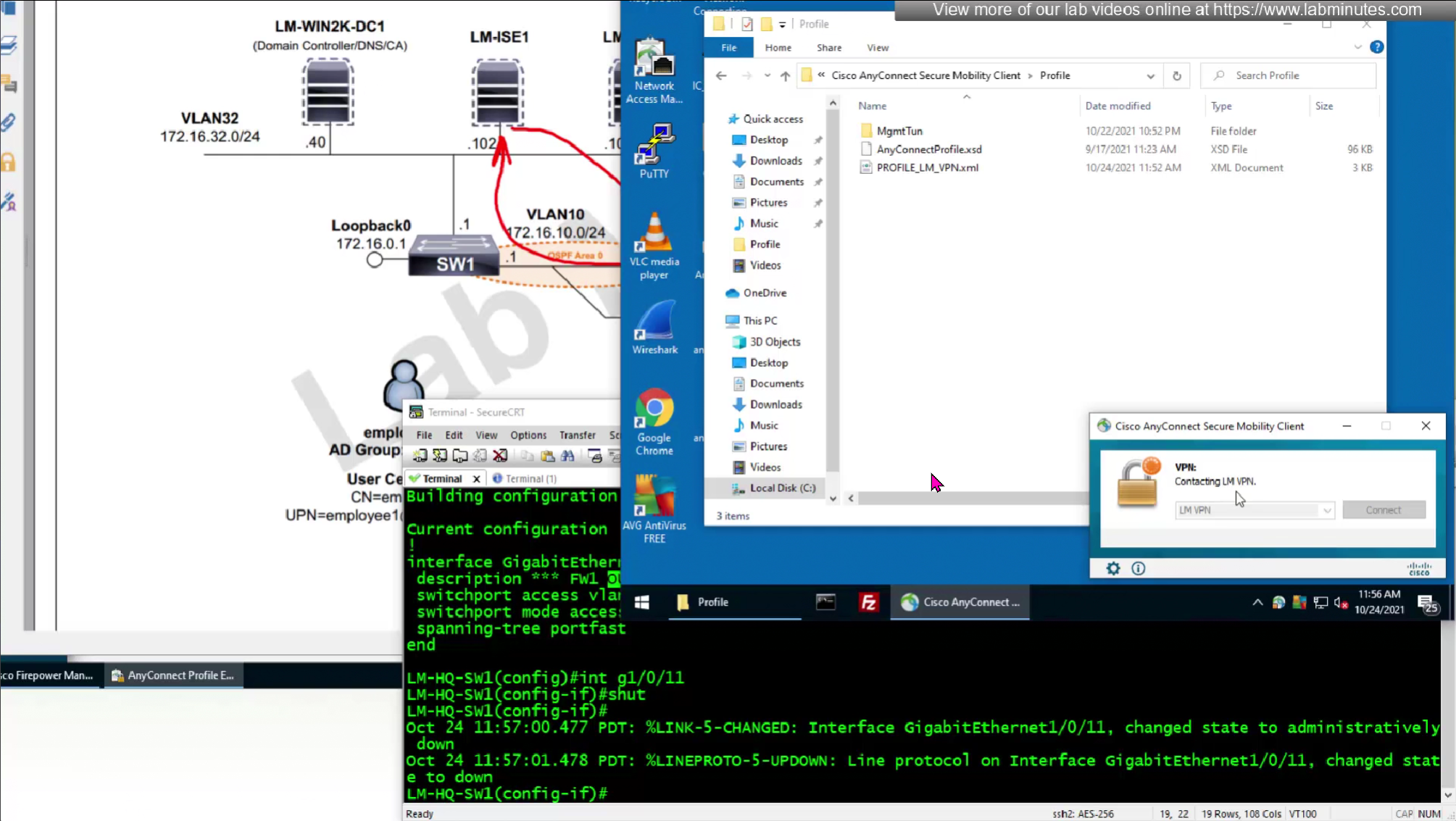
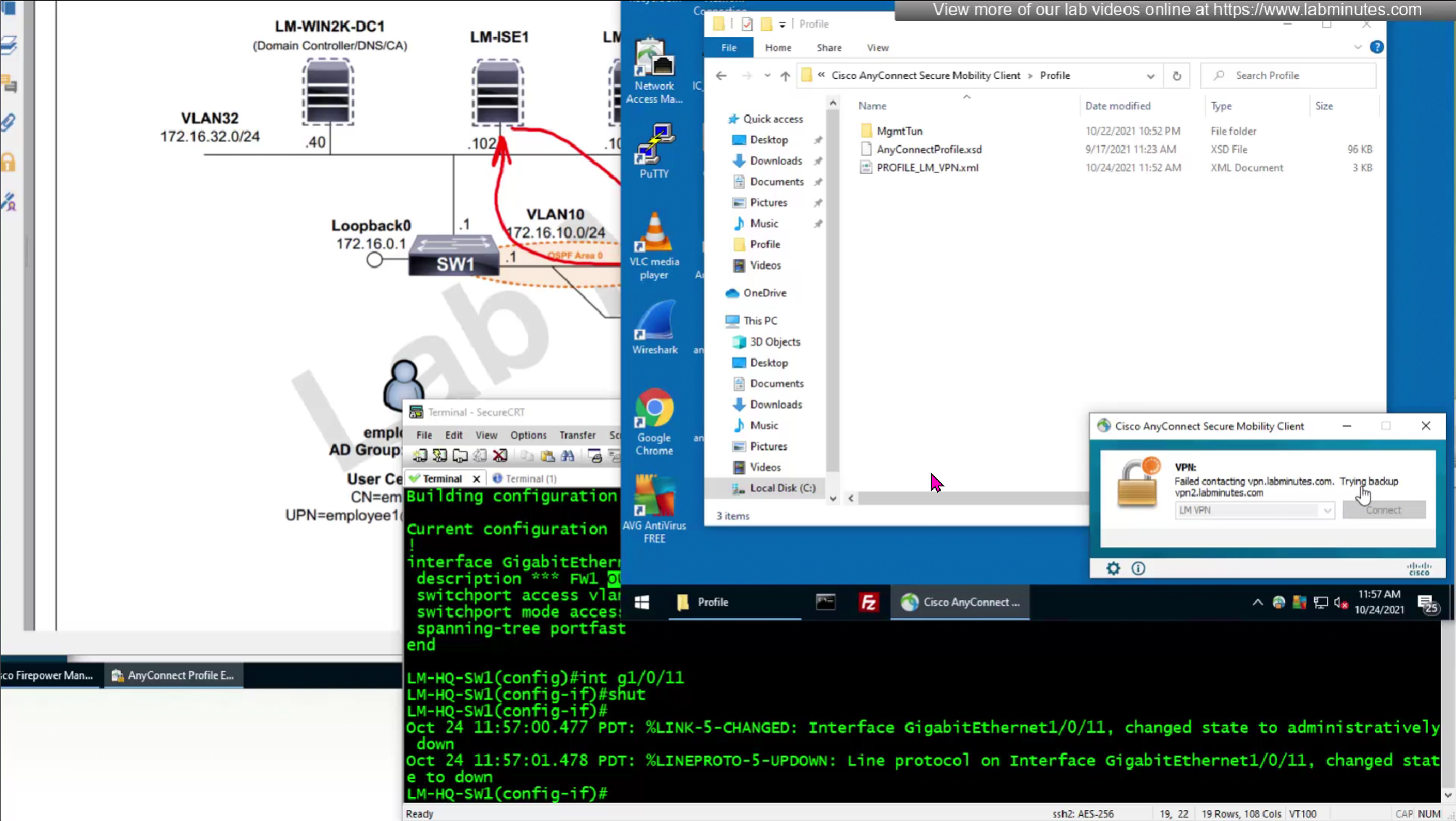
There are couple of things that we need to configure Anyconnect client profile in order to improve the client experience
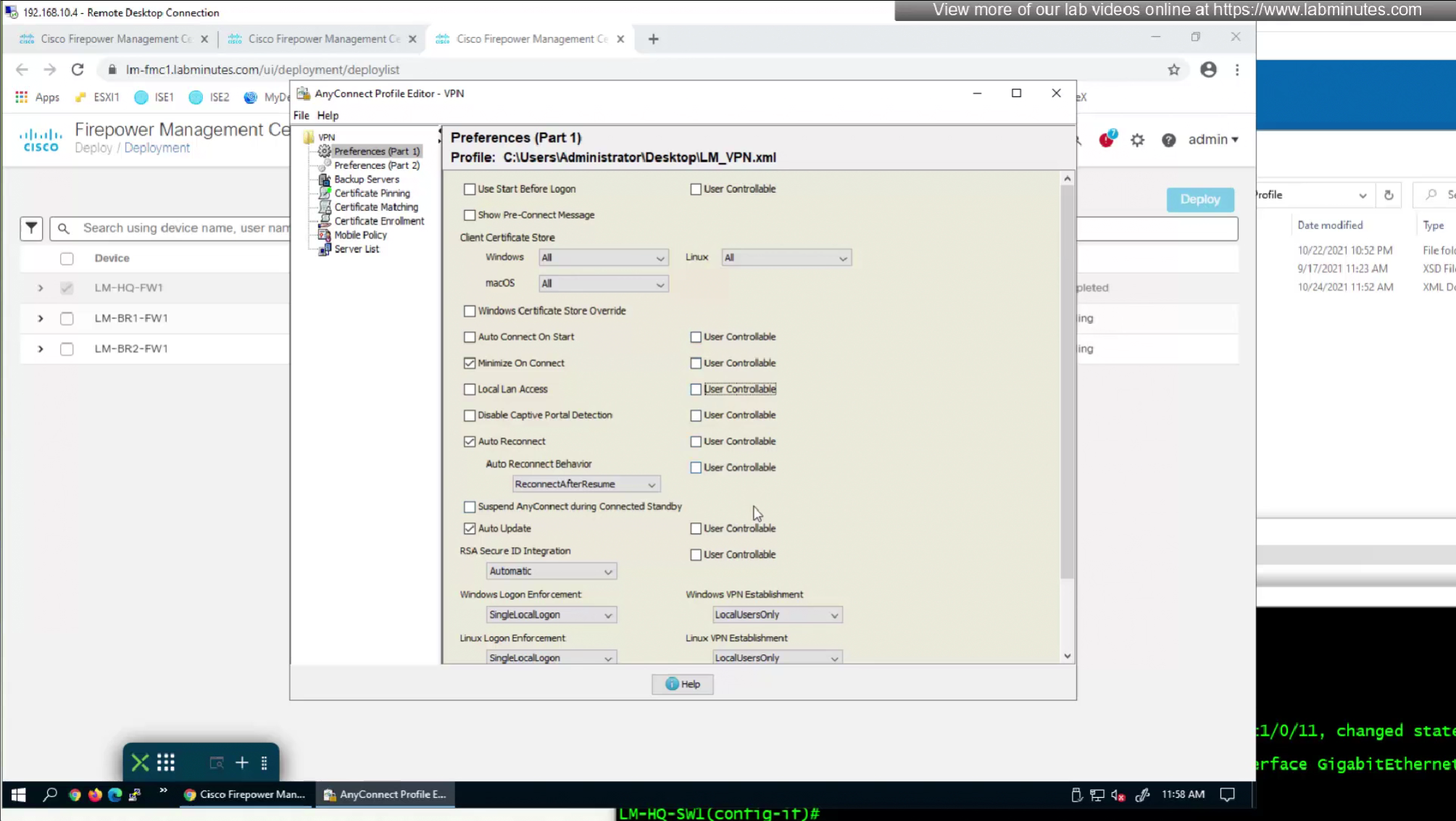
Disable those user controllable fields in order to save from helpdesk calls since user can make changes and cause issues with anyconnect
on Preferences Part 1 we will not change much
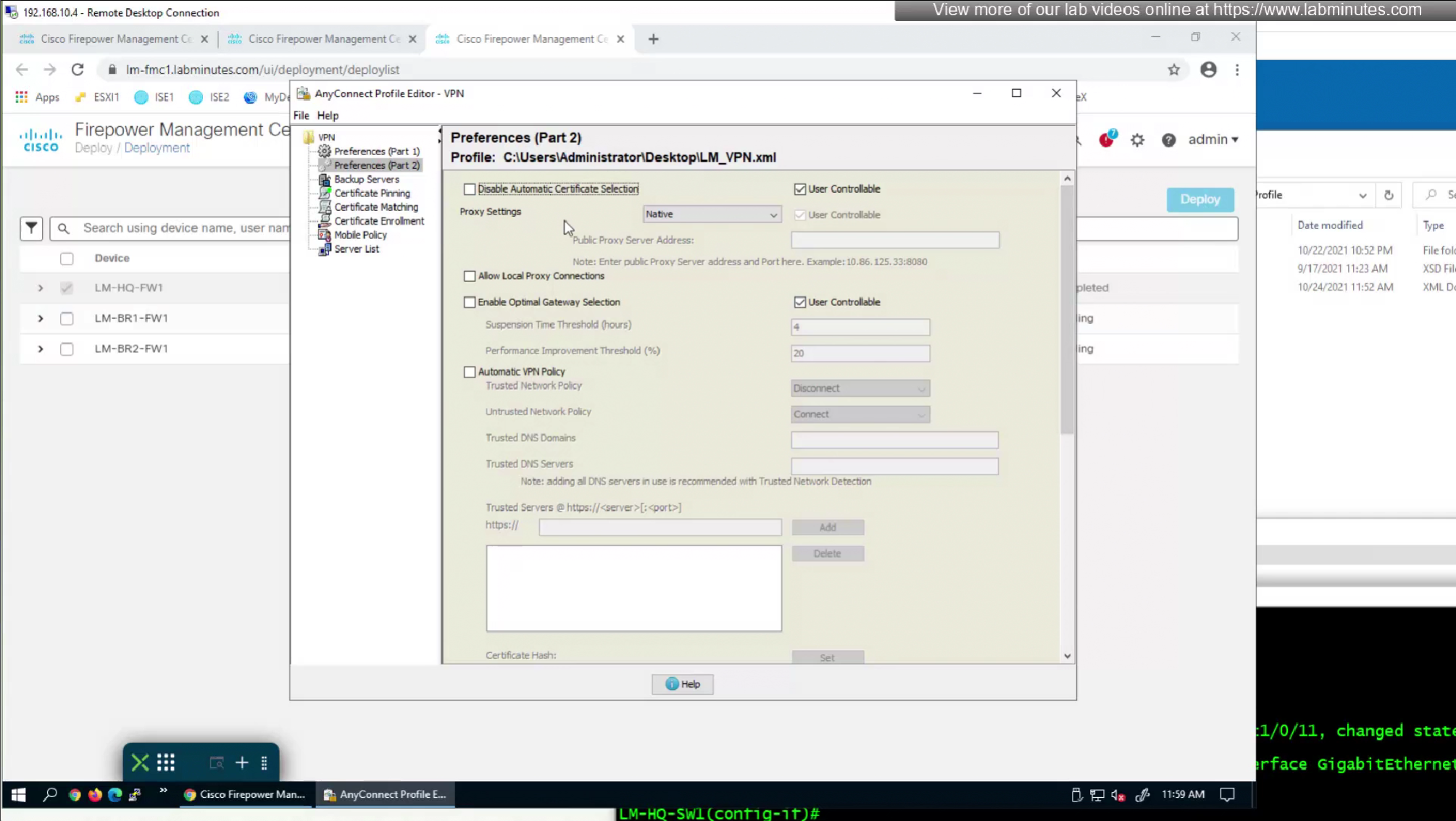
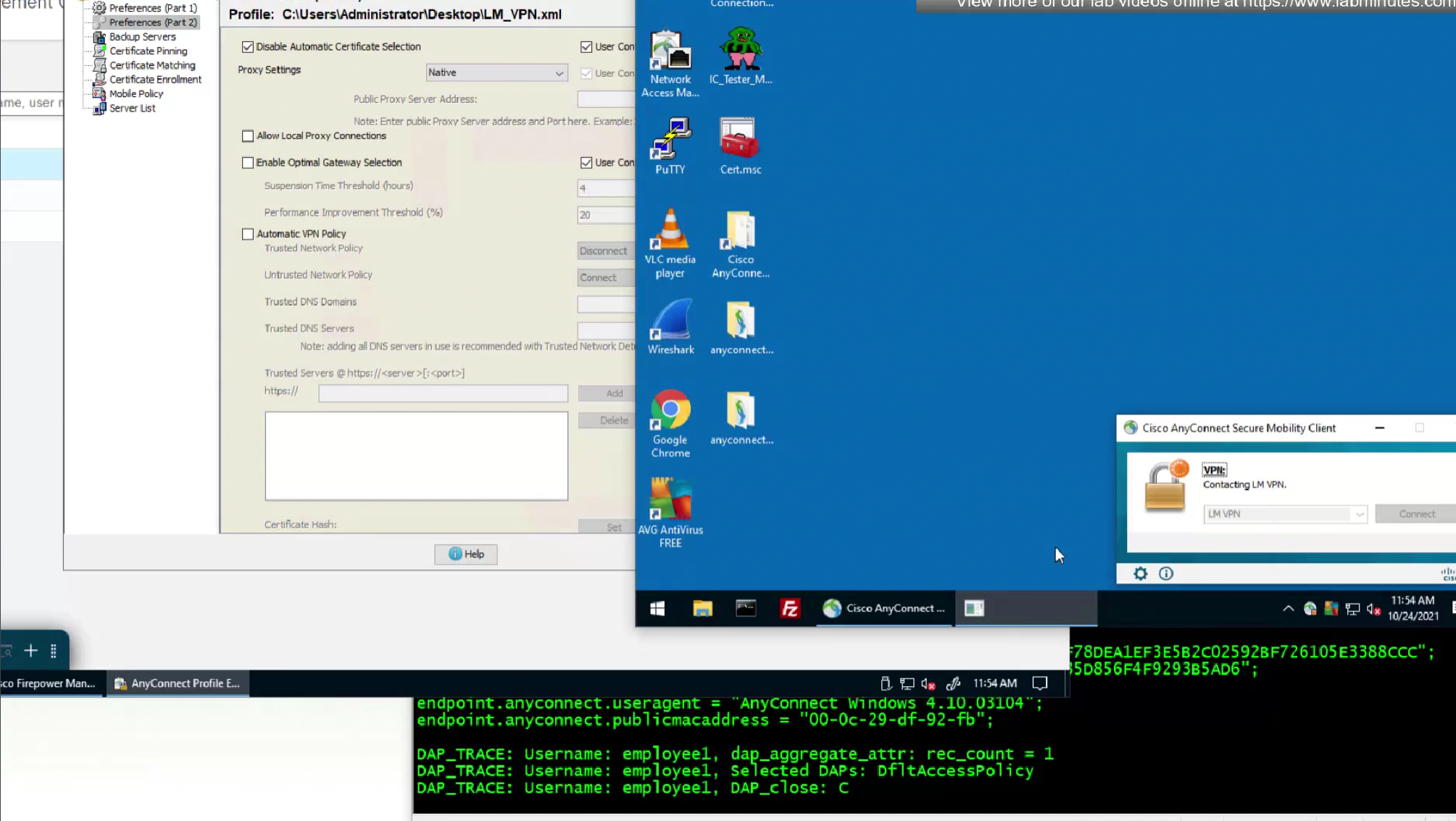
We do not like user getting prompted to select the certificate during authentication so we will uncheck “Disable Automatic Certificate Selection”


After making changes to the XML profile, upload it to FMC again
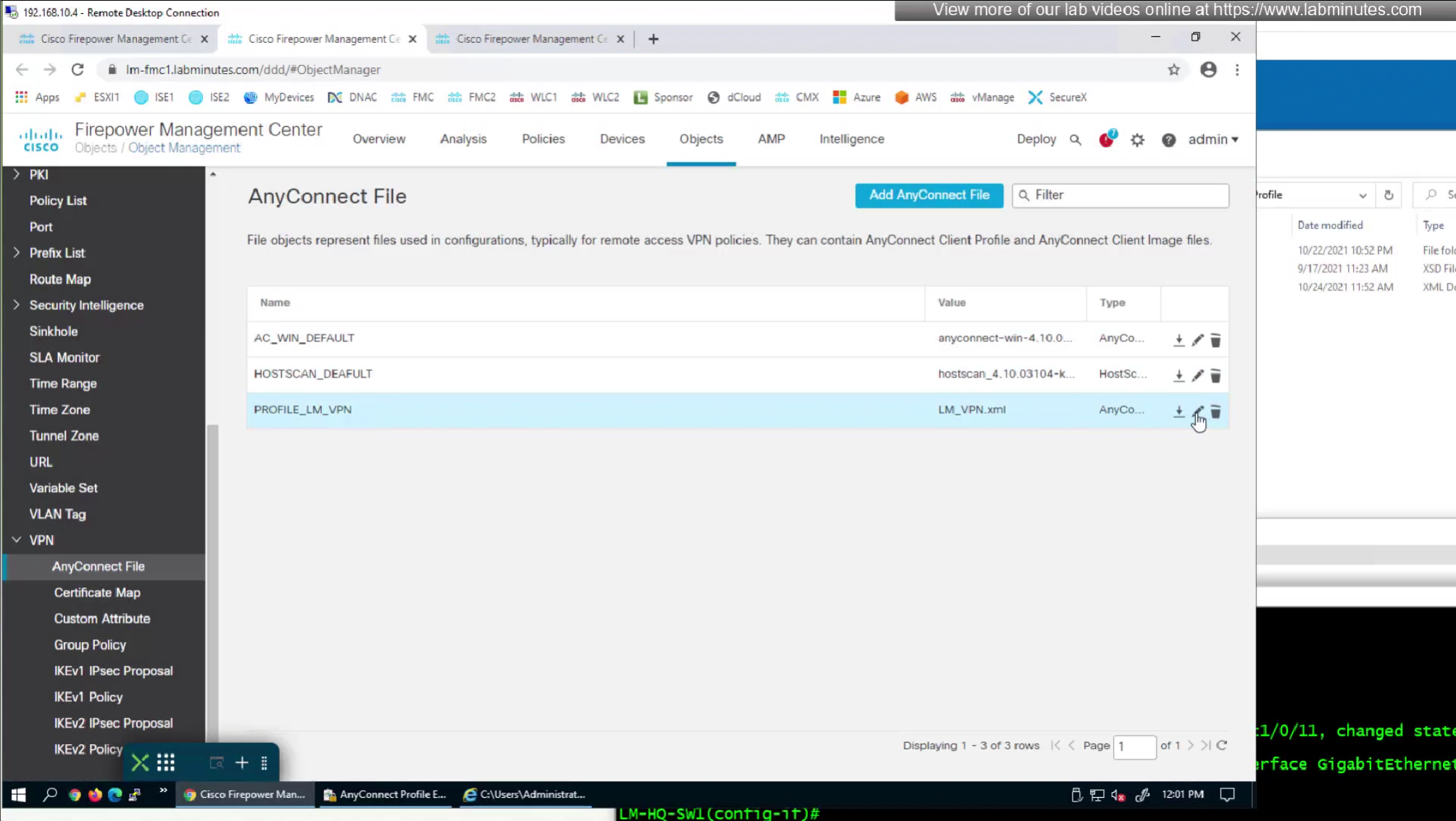
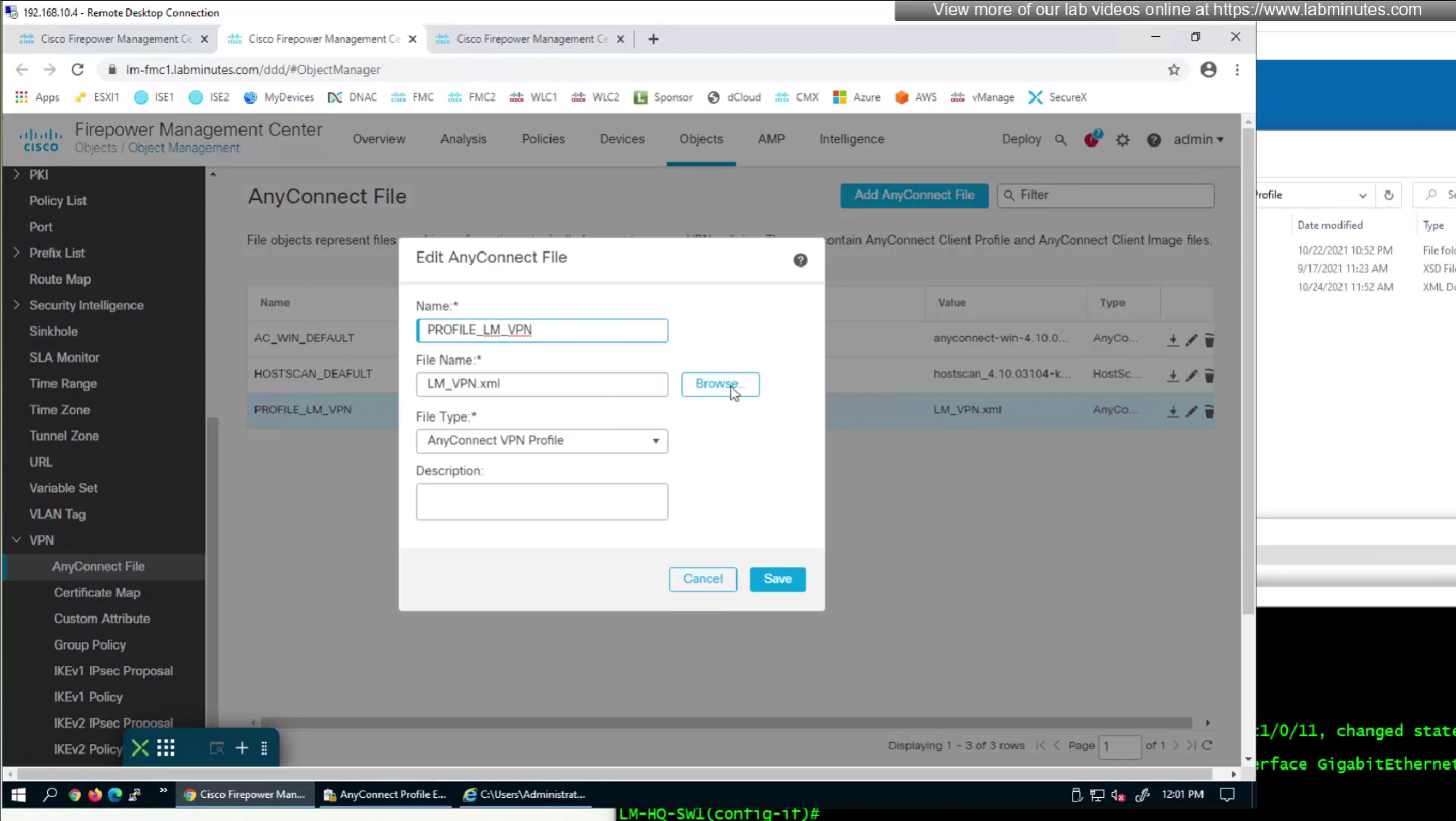
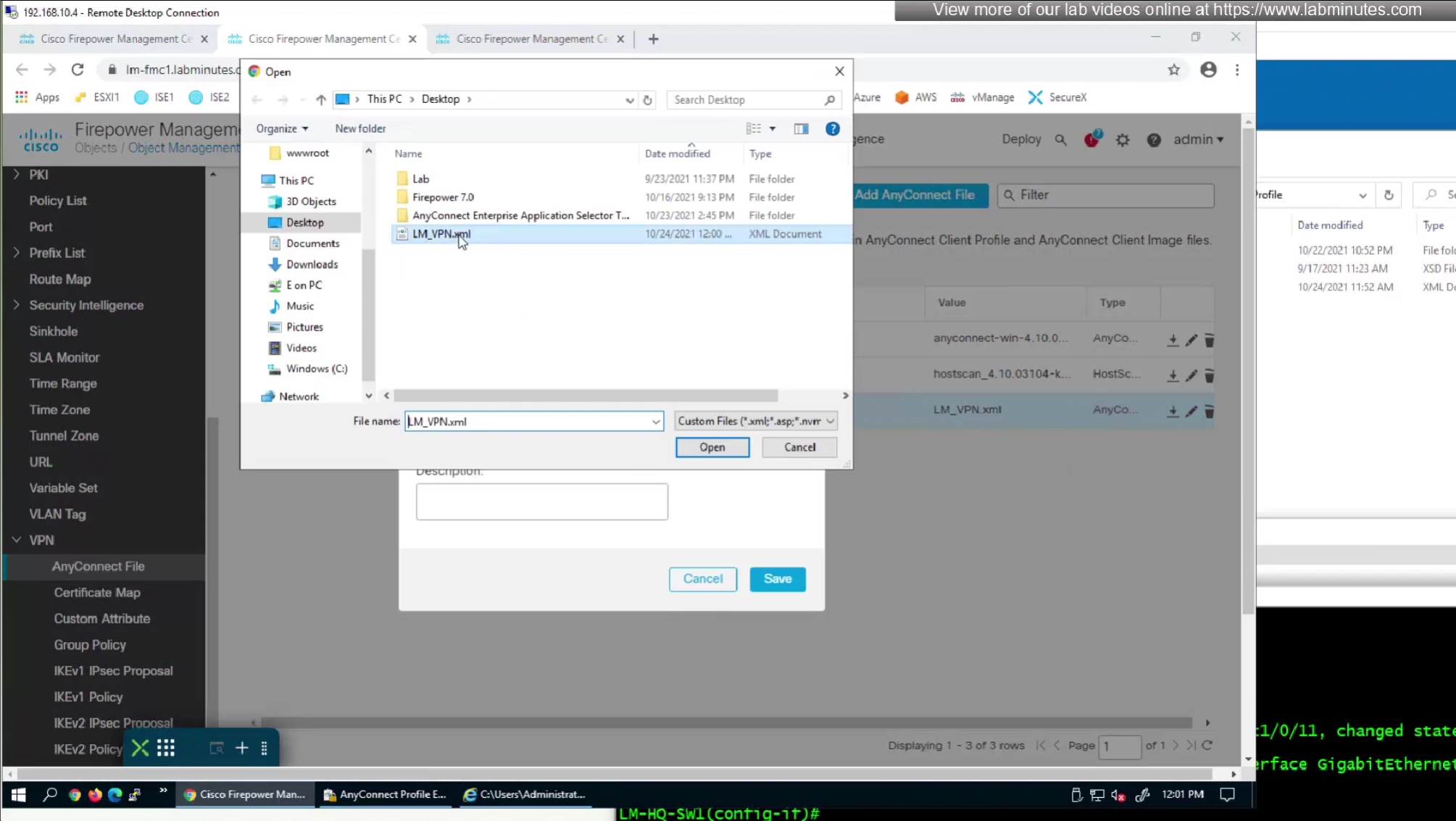
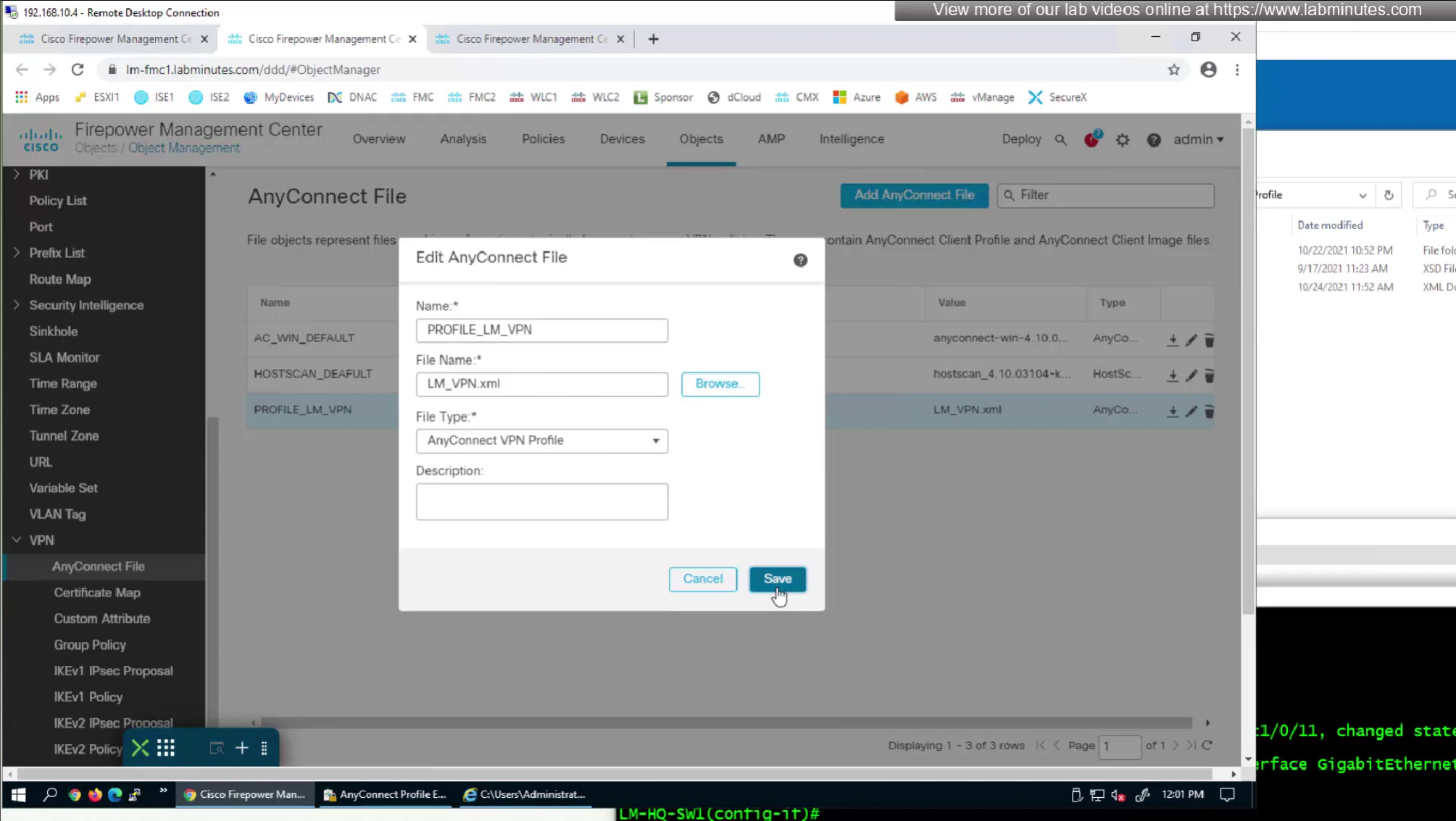
After reuploading the new XML file with new behaviour, if you connect and see same behaviour such as Certificate prompt (even though we disabled it) then it means that computer still has old xml file on it and it needs to connect to VPN again in order to obtain new xml file with new behaviour configured, so don’t troubleshoot and just connect again to VPN